


Issue:
When you are using an Activity (e.g., Watch TV), certain physical buttons on your X remote do not respond as expected.
Cause:
This usually happens because those buttons have not been assigned a specific command for that Activity. In Device mode, the remote uses the default command set for that device, but in Activity mode, each button must be manually mapped to a device and a command. Once you assign the missing functions, the buttons will work again.
How to fix – step by step (refer to the attached screenshots):
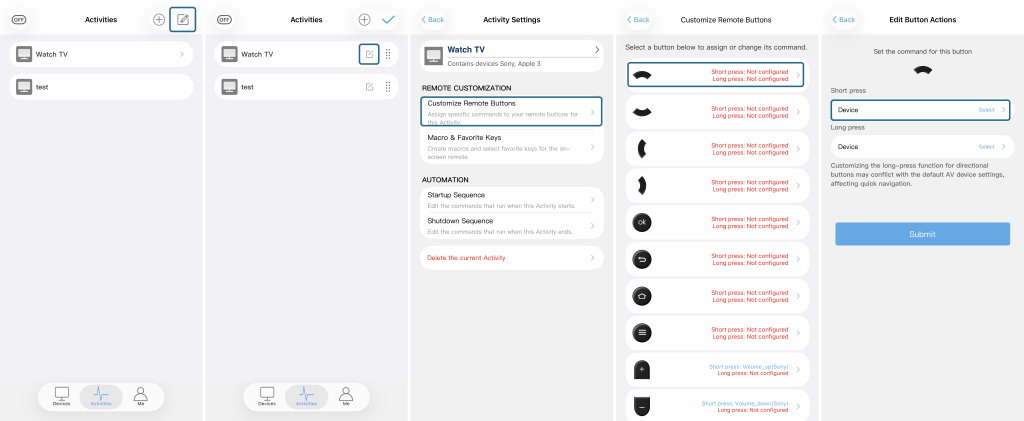
- Open the Sofabaton App and go to the Activities page.
- Tap the settings icon (circled in Figure 1) for the Activity where the buttons are not working.
- On the next screen, tap the settings icon (circled in Figure 2) to enter the Activity settings page.
- Select “Customize Remote Buttons” (shown in Figure 3).
- In the button list, select the button that is not working (as shown in Figure 4).
- Choose whether you want to assign the action to a Short press or a Long press (see Figure 5).
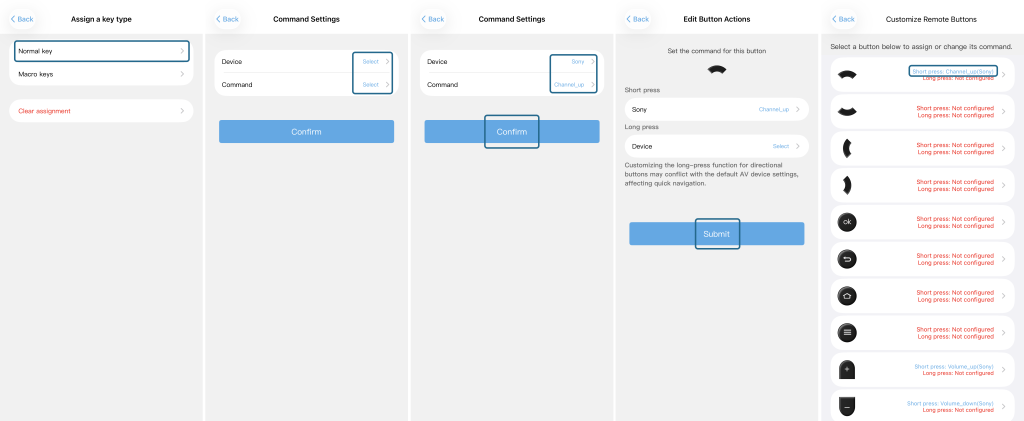
- On the next screen, select “Normal key” (as indicated in Figure 6).
- Now choose the Device you want to control and the Command you want to assign (see Figure 7).
- You will see your selected device and command on the confirmation screen – tap “Confirm” (as in Figure 8).
- Finally, tap “Submit” (shown in Figure 9) to save the mapping.
After you complete these steps, go back to the button list – you will now see the assigned device and command displayed for that button (as shown in Figure 10).
Important reminder:
- This assignment is Activity‑specific – it does not affect the button behavior in Device mode.
- If you still have issues, make sure the target device is correctly added and its IR codes are already learned or selected from the library.