


Please follow these steps to use Alexa with Sofabaton. Additionally, watch the video tutorial provided below.
Preparation:
1. You need to create Activities in Sofabaton. Third-party voice control can only turn activity on or off and does not support switching a single device. If you need to control a single device, you can create it separately as an activity.
2. The WiFi connected to the X1 Hub must be connected to the Internet before the Hub can upload the device information to the cloud.
Procedure:
Open the Alexa app, search for Sofabaton in Skills & Games, and log in to your Sofabaton account, which was linked to your Hub during the “Setup new hub” process.
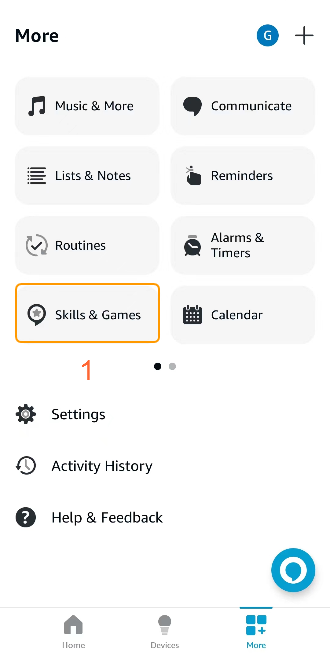
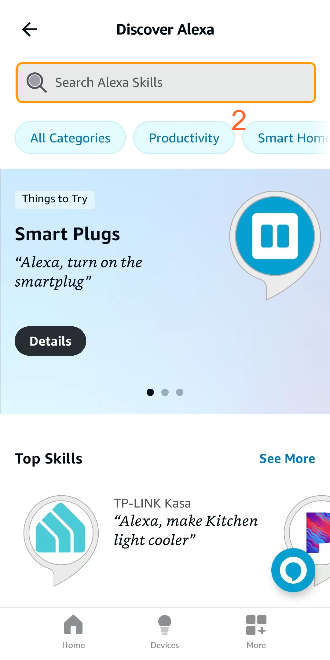
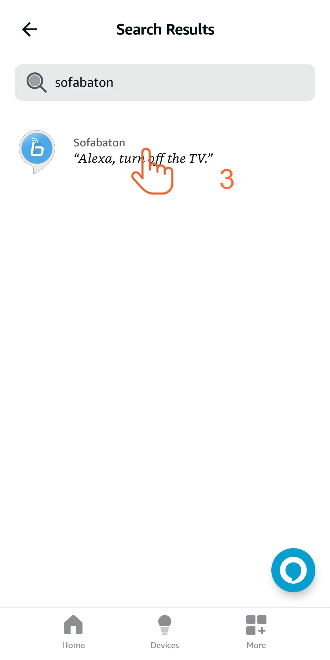
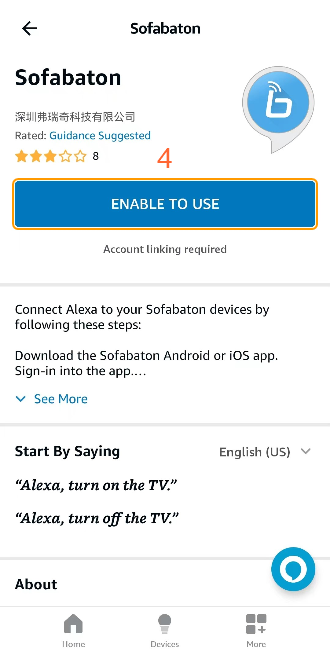
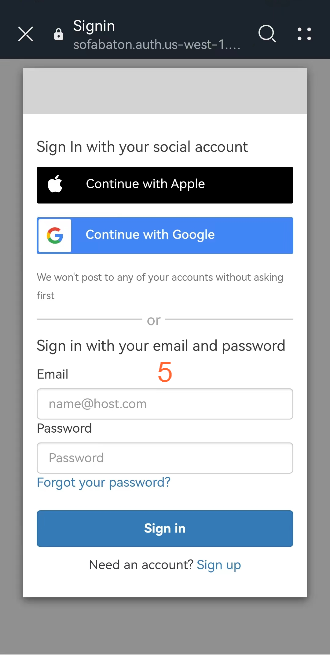
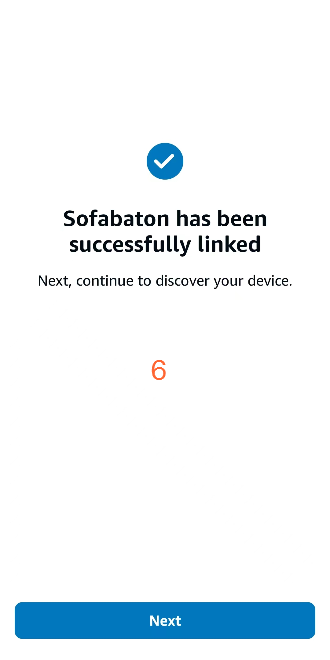
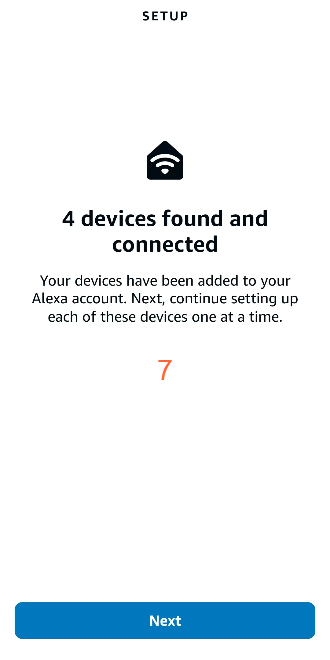
After logging in, Alexa will automatically retrieve the activities from your Sofabaton account. If you have four activities, Alexa will indicate that it has discovered four devices.
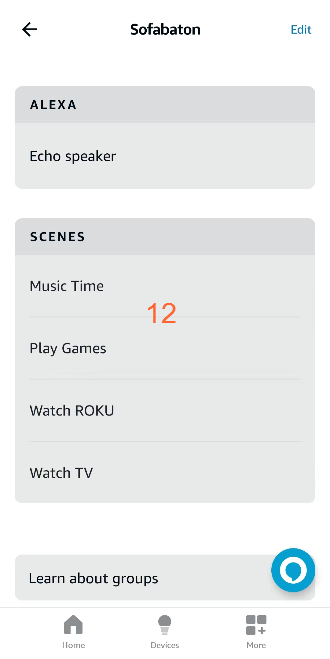
However, you won’t be able to see these scenes directly in the Alexa app. You need to add them to a group.
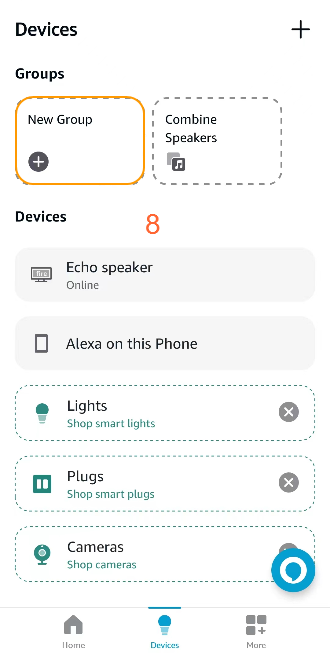

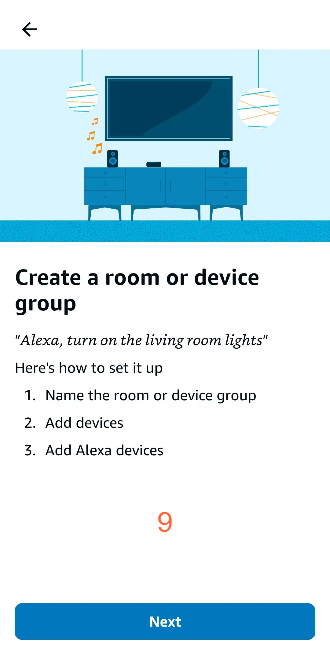
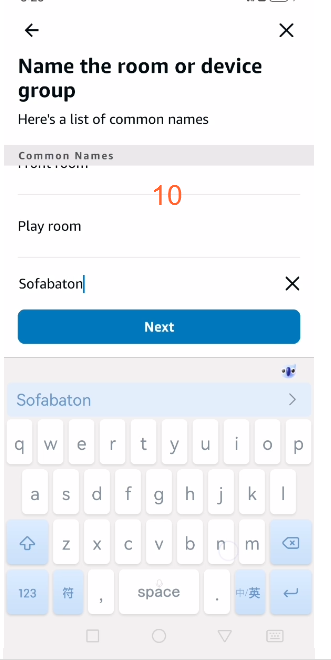
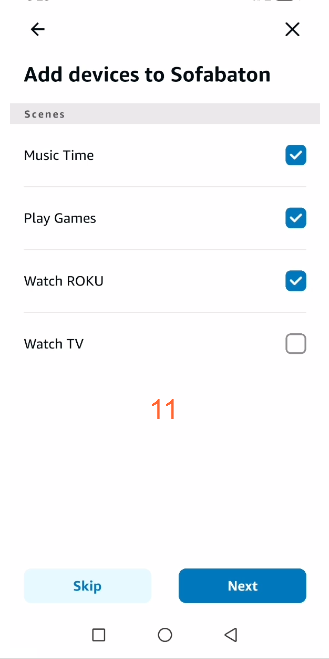
If you haven’t created one group before, you can create a new group, such as “Sofabaton.” Then, select the activities (which appear as devices in the app) that you need. Once added, you’ll be able to see the corresponding scenes within the group.
If it’s still not working, please get in touch with the CS team via email at service@sofabaton.com or send feedback from the Sofabaton app.