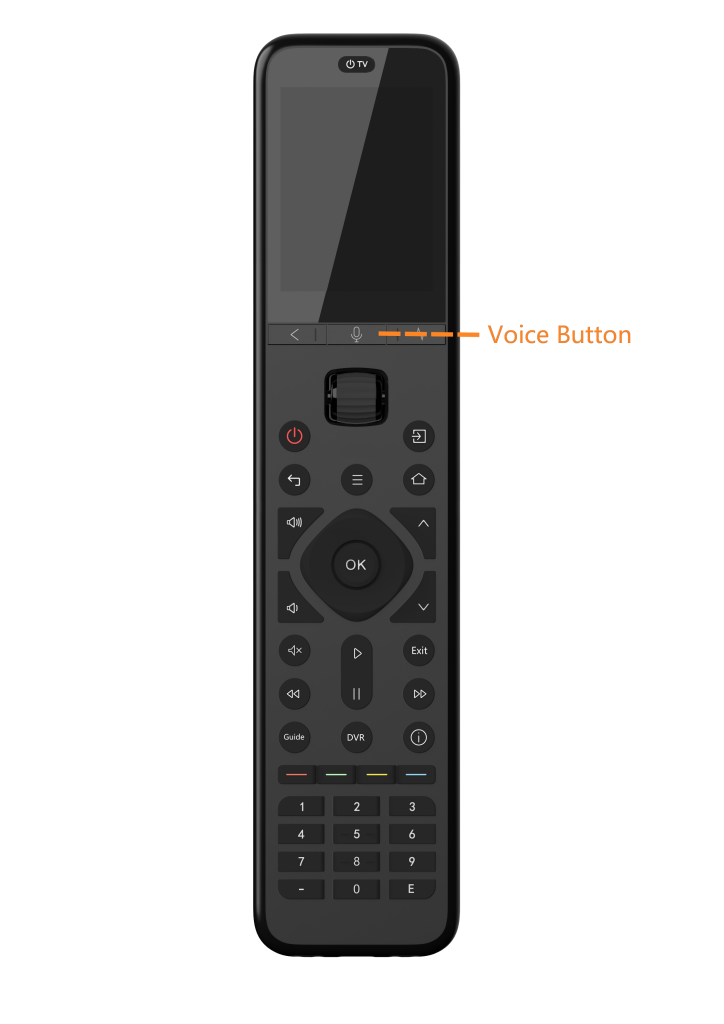


This guide will show you how to use the Air Mouse and Google Assistant features on the U3.
Preparation:
1)Ensure the target device has been successfully added to your remote via Bluetooth.
2)Please verify that your device (e.g., Google TV) natively supports Air Mouse or Google Assistant. These features will be unavailable if the target device lacks native support.
Procedure
1. Air Mouse Function
The Air Mouse feature acts as a wireless Bluetooth mouse for navigating apps on supported Bluetooth devices.
1) Select Device: Use the scroll wheel to select the connected Bluetooth device.
2) Activate: Aim the remote at the TV and press the Air Mouse button on the right side of the remote. An arrow cursor will appear on the screen.
3) Navigate: Move the remote in the air to control the cursor.
 Note:
Note:
Performance depends on the target device. Some Bluetooth hardware may not support external mouse input, rendering the Air Mouse function inactive.
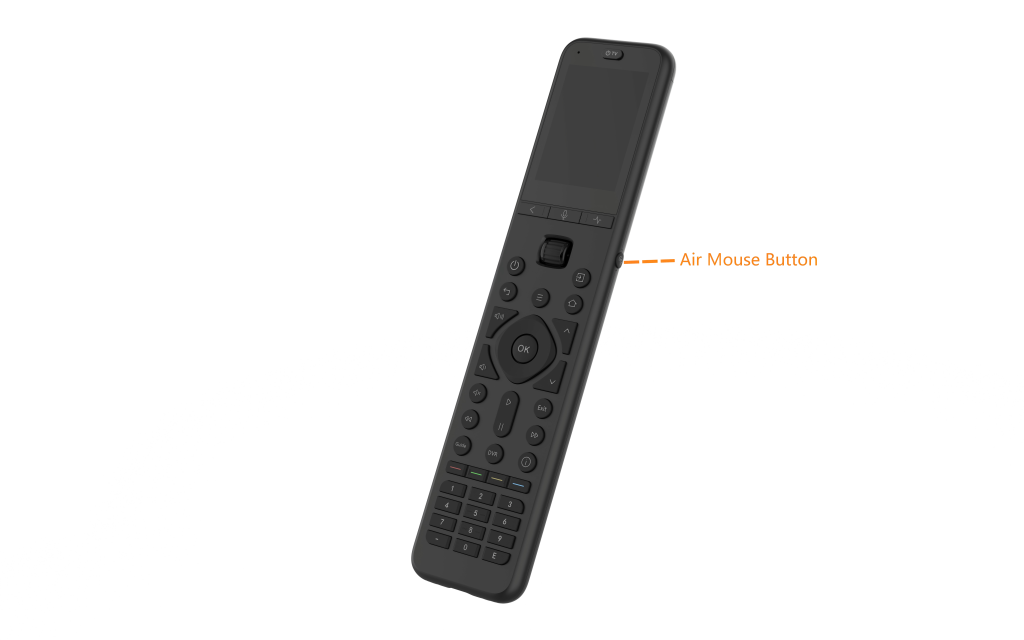
Calibration & Troubleshooting:
- Alignment: Point the remote at the screen center when activating. If the cursor is misaligned, toggle the Air Mouse off and on while aiming at the screen.
- Recalibration: If the cursor drifts or behaves erratically, place the remote on a flat table for 6 seconds to reset the sensors.
- Signal Interference: Keep other Bluetooth devices away to avoid interference, which may cause lag or jittery cursor movement.
2. Google Assistant Function
1) Select Device: Use the scroll wheel to select the connected Bluetooth device on the remote’s screen.
2) Speak: Press and hold the Voice Button (located below the screen) and speak your command clearly.
Note:
This feature only works with devices that natively support Google Assistant via Bluetooth. It is not compatible with Apple TV (Siri), Fire TV (Alexa), or non-Bluetooth infrared devices.