


This article will guide you how to add devices to your U3 remote.
Preparation:
Before we get started, please ensure that you’ve downloaded the SofaBaton app and have successfully connected it to your U3 remote. If not, you will need to complete these steps before moving forward. If you need assistance with this process, please refer to the Connect Your Remote article.
Setup Procedure:
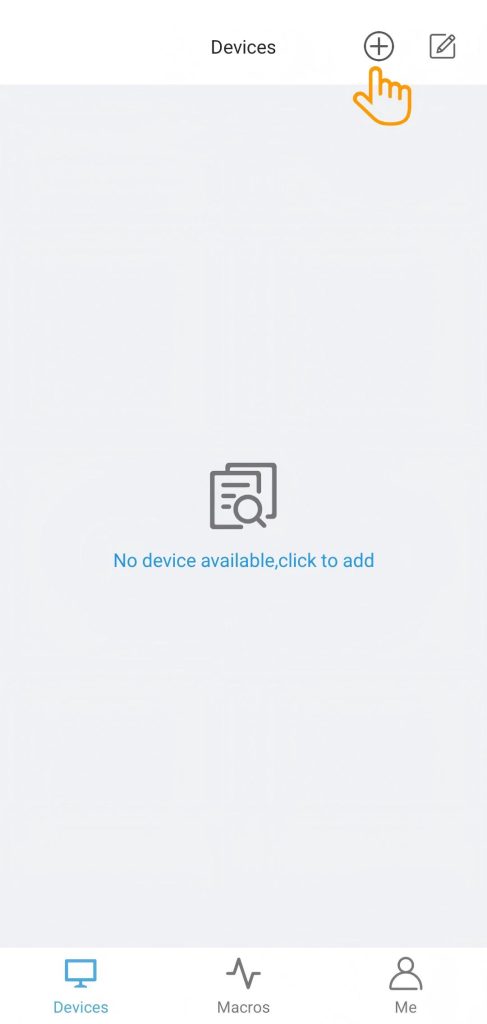
Once your Sofabaton App connected to the U3 remote, you will be navigated to the “Devices” page.
Click the “Add” icon in the upper right corner to add a new device.
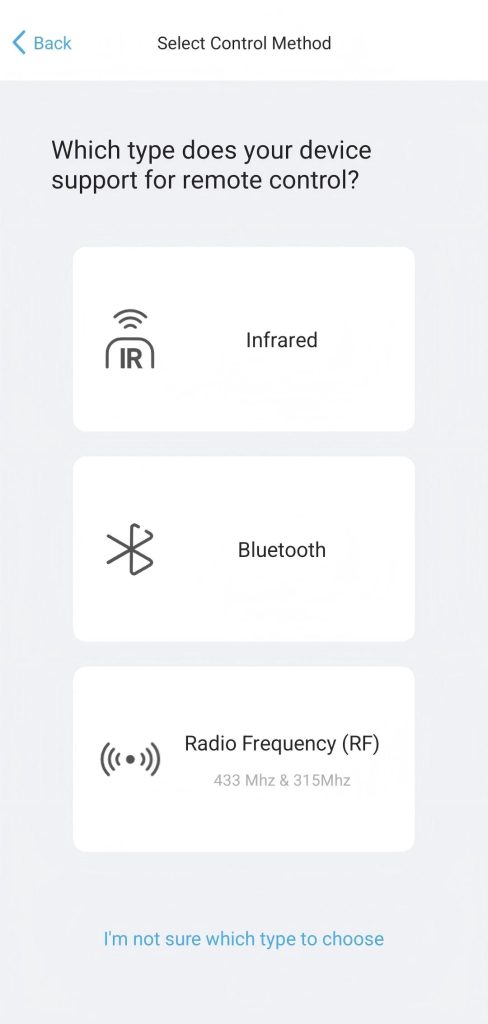
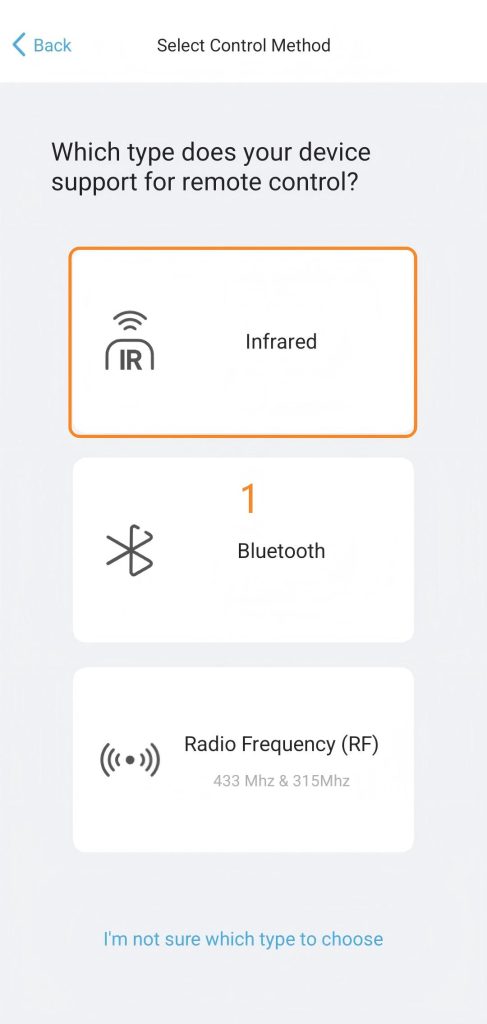
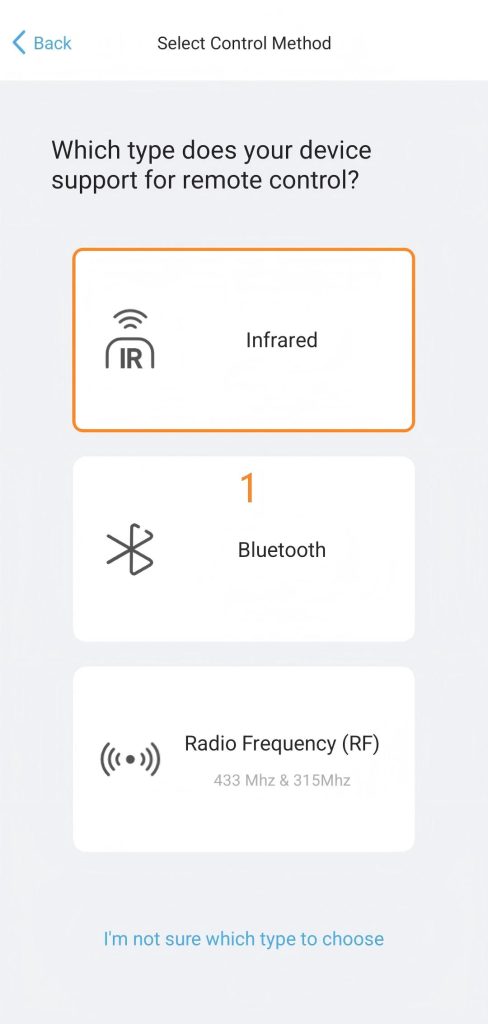
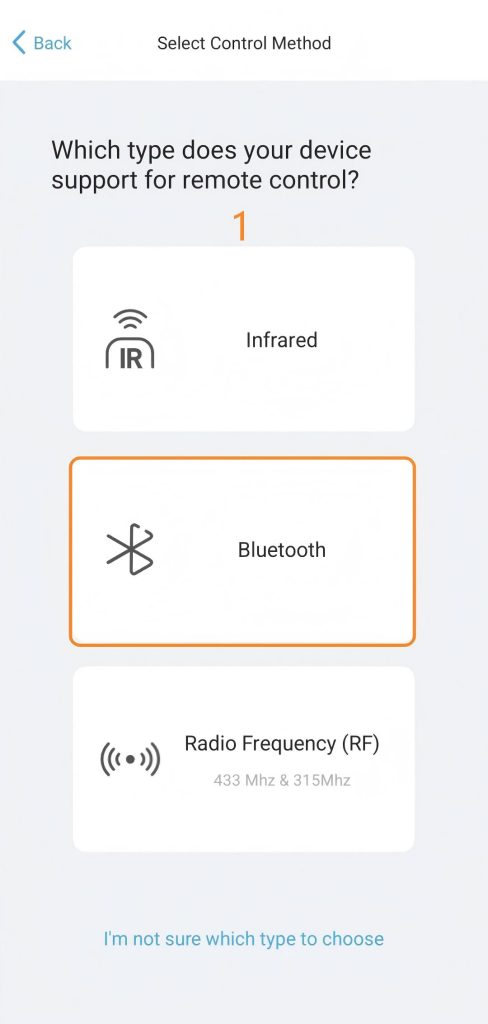
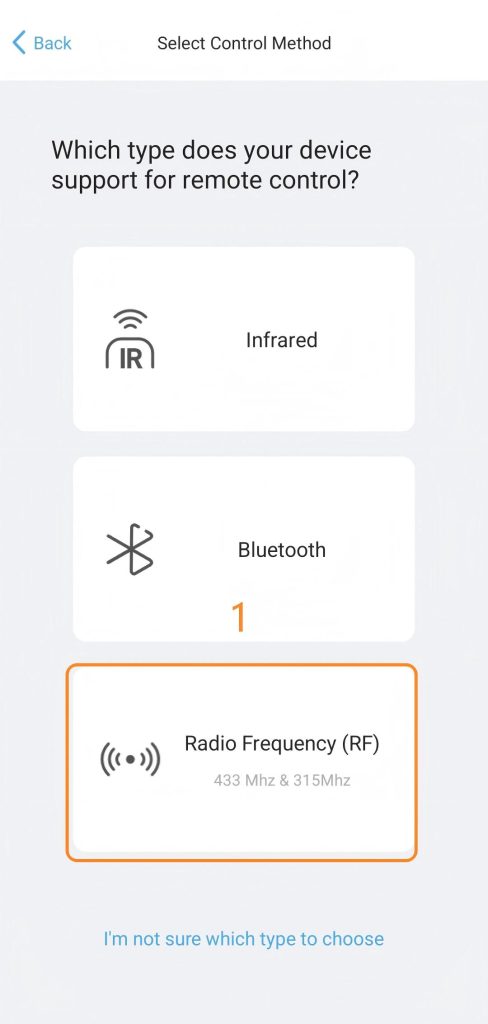
There are three options for adding devices: Infrared, Bluetooth, and RF Control.

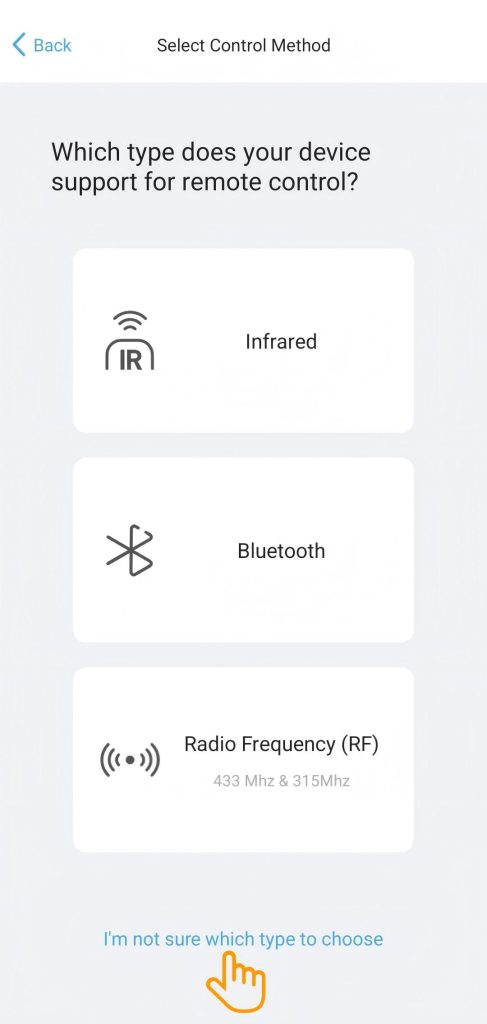
If you are unsure about the control technology of your device, please consult the article I’m not sure which type to choose.
Next, follow the instructions on the app page to complete the subsequent settings. You can select the actual device type to view detailed instructions.
1. Add an infrared device
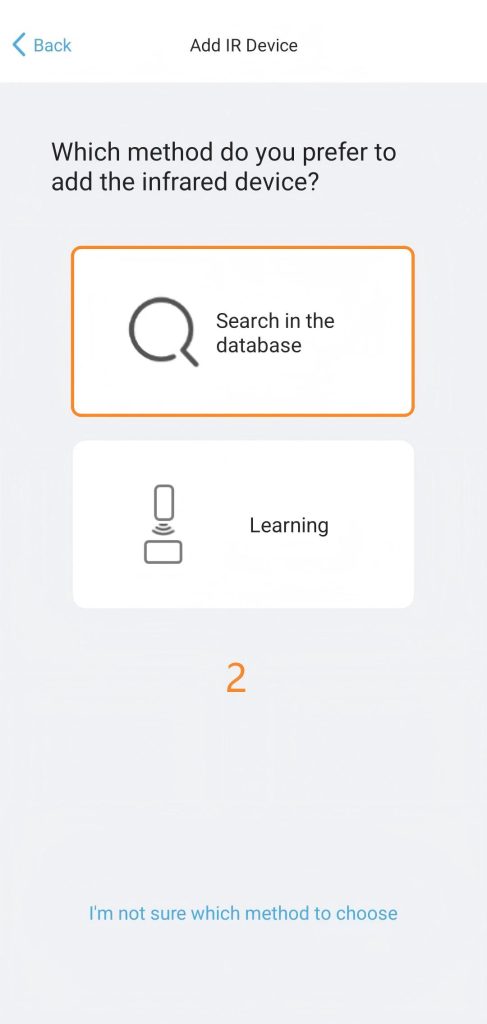
You can add an infrared device in two ways: by searching in the database to download the code library or by learning from the original IR remote .
If you only need one or two commands for daily use, such as Power, it is recommended to learn directly from the original remote. Otherwise, it is advisable to prioritize searching in the database.
1.1 Search in the databae
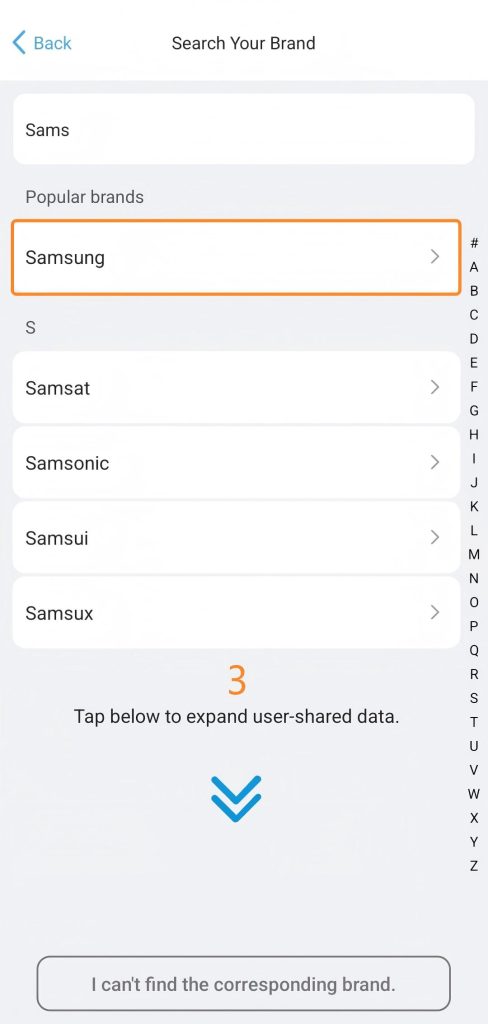
Navigate to App > Devices > Add > Infrared > Search in database.
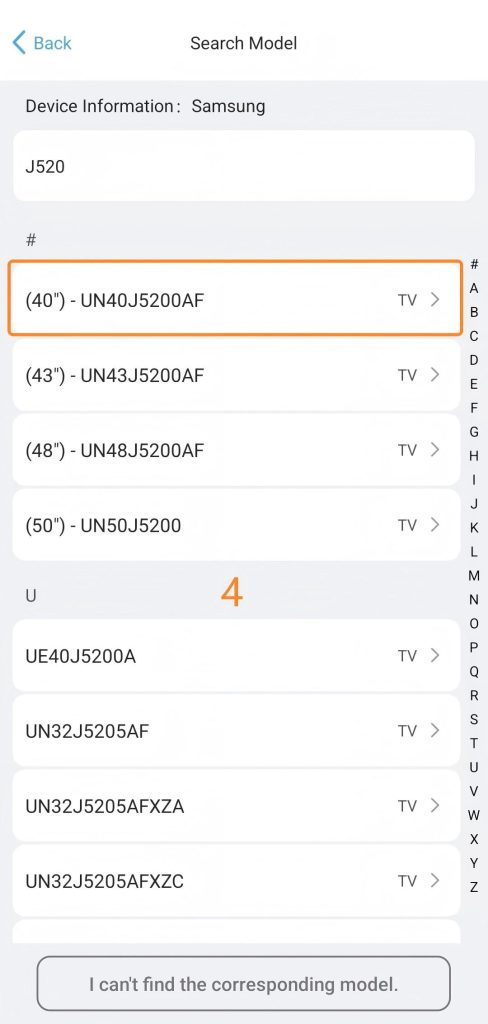
Simply enter your device’s brand and model to find a match. If your specific model isn’t listed, try testing a similar model or select a generic option from the same brand series.
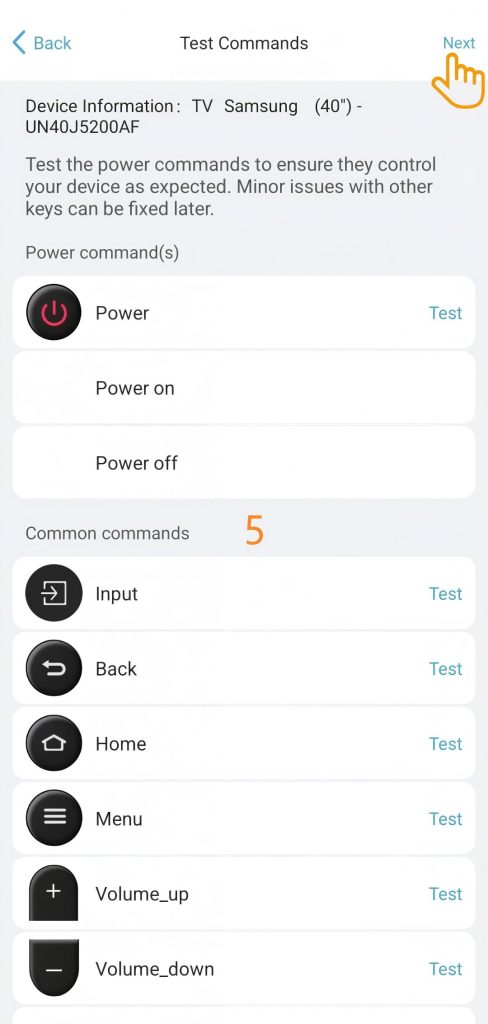
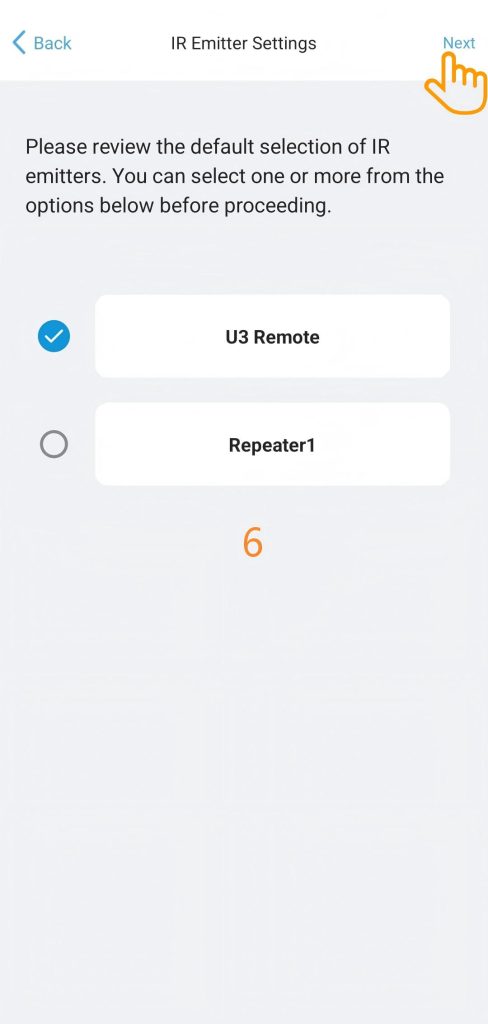
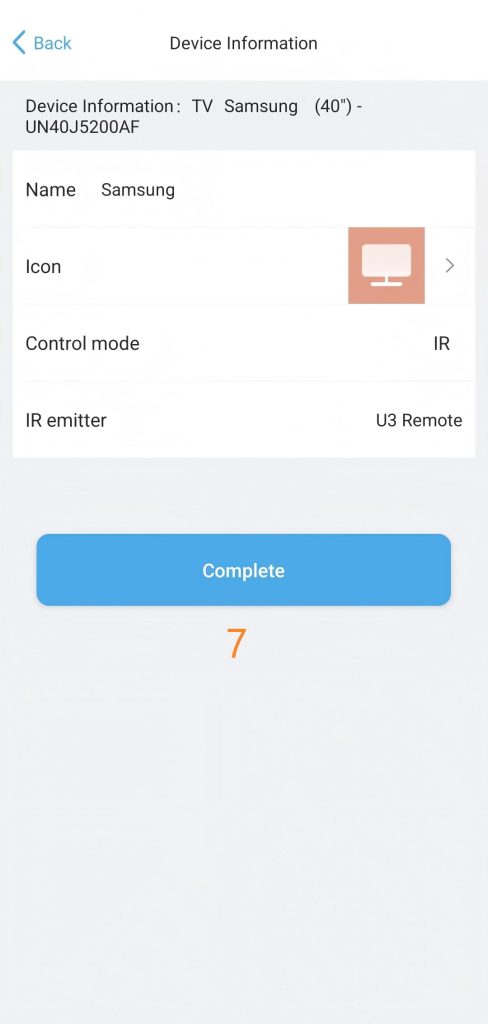
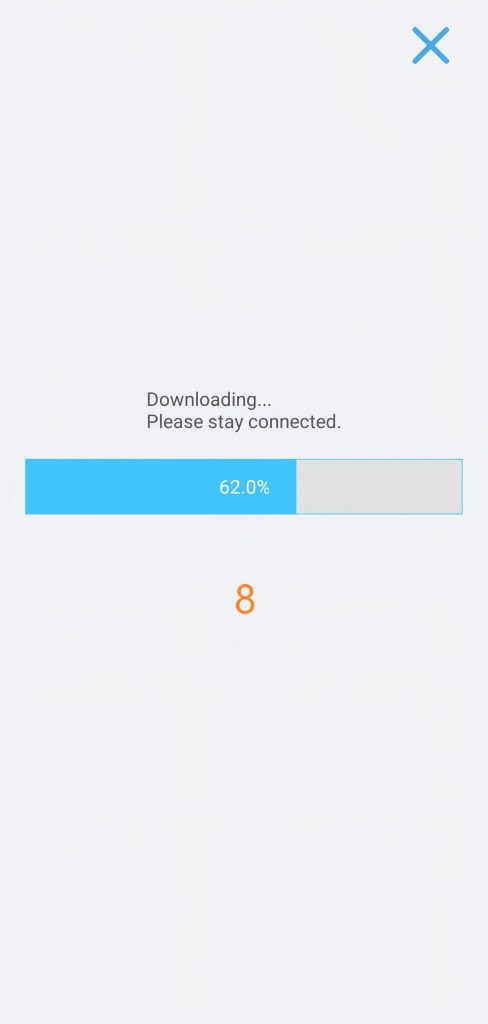
1.2 Test commands to match the correct code library.
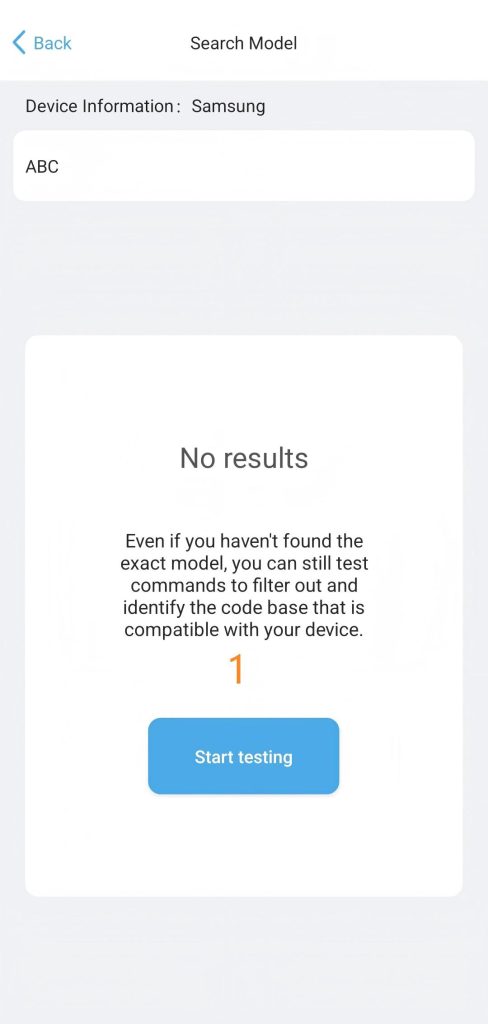
If your device model is not in the database, you can test a few commands to find a suitable code library. select“I can’t find the corresponding model” after searching your device brand.
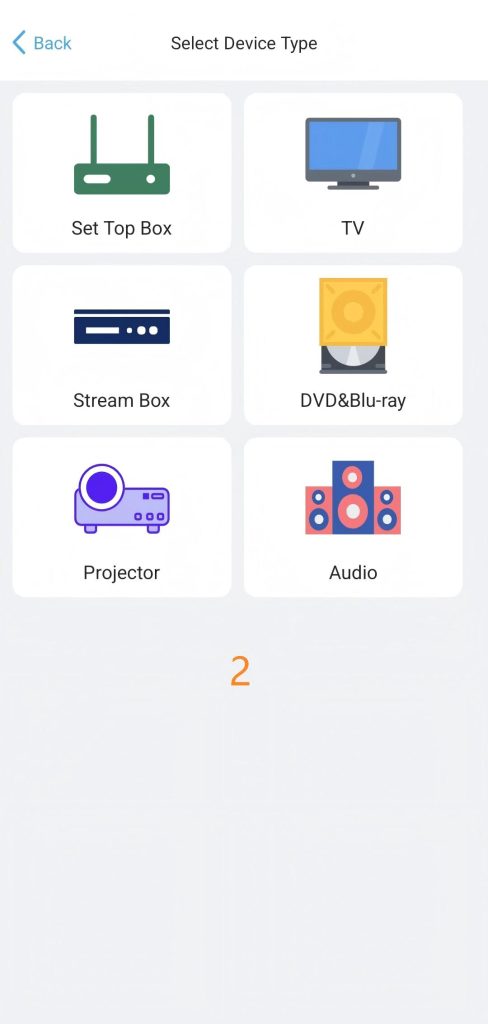
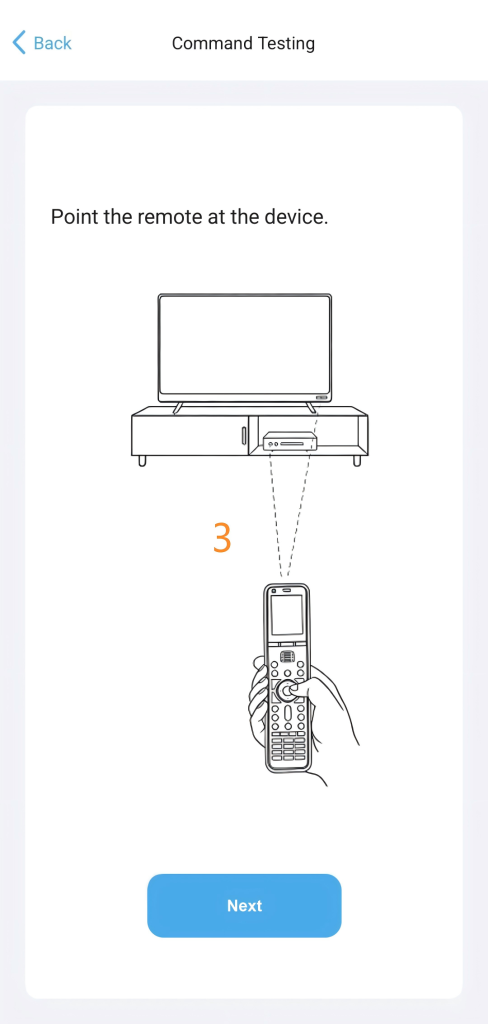
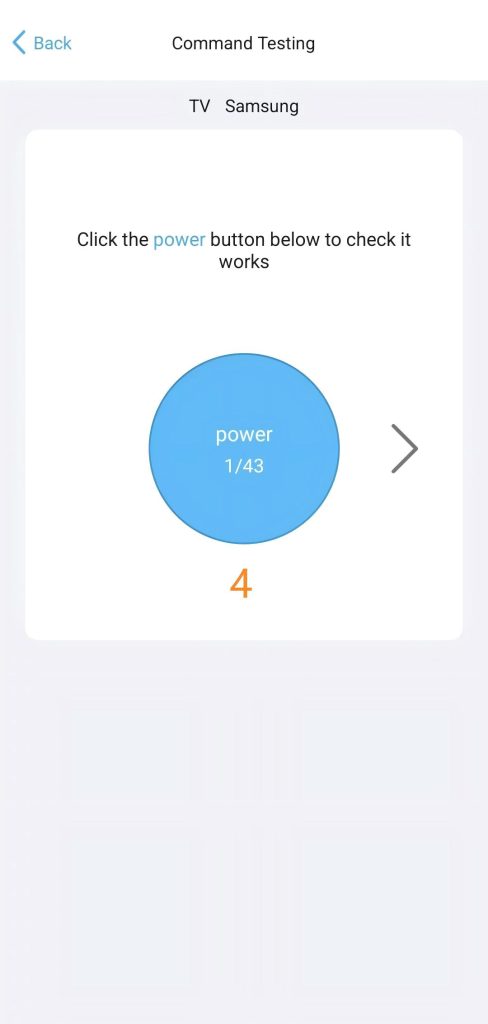
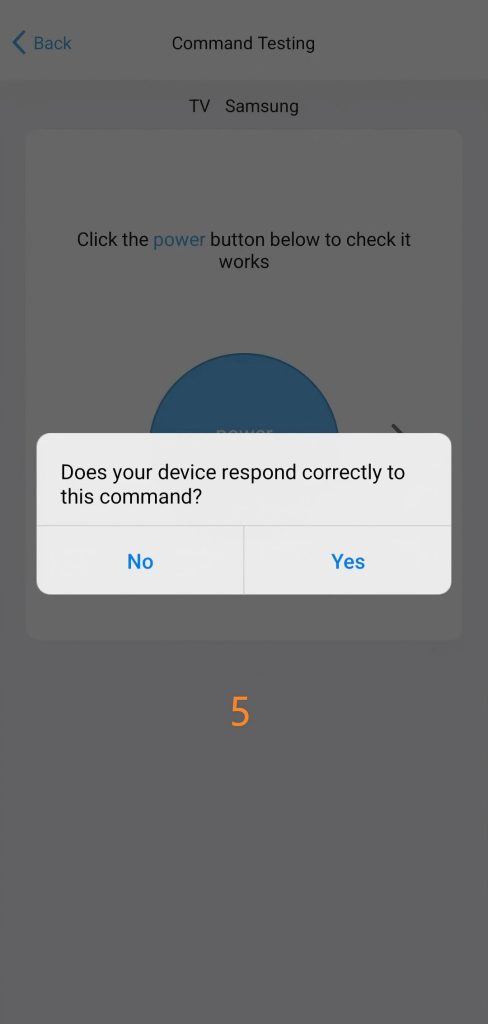
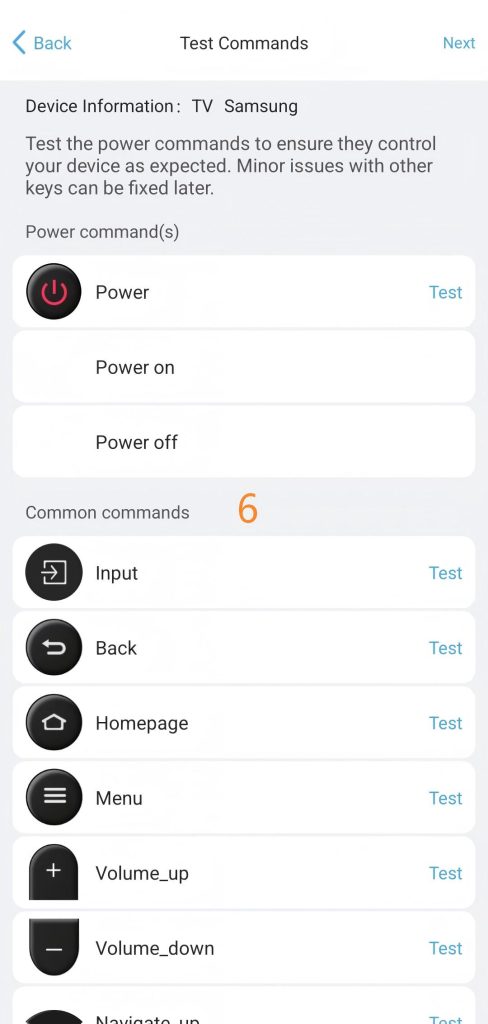
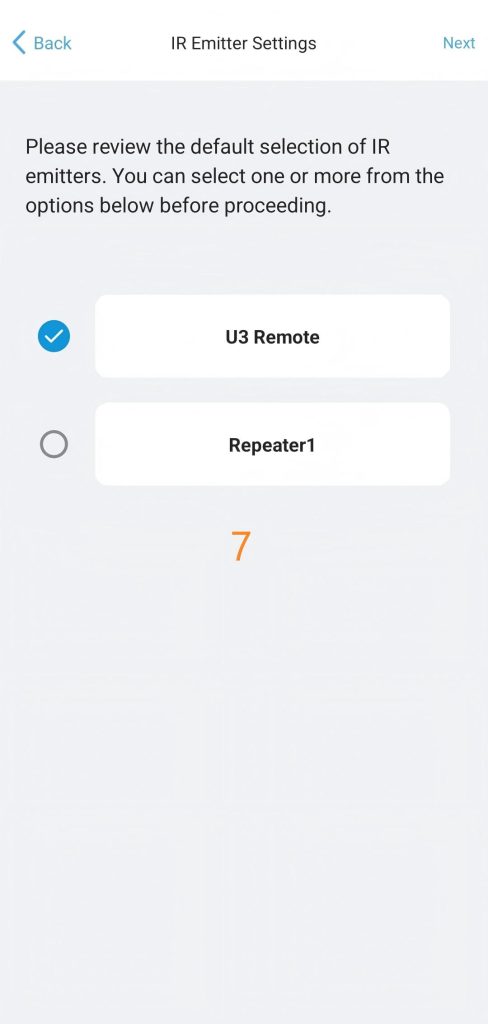
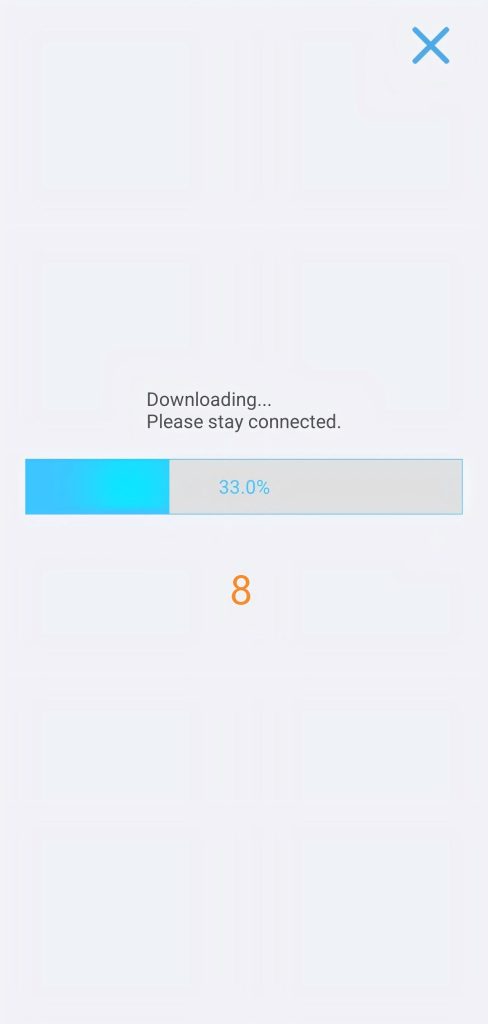
1.3 Learn from original remote
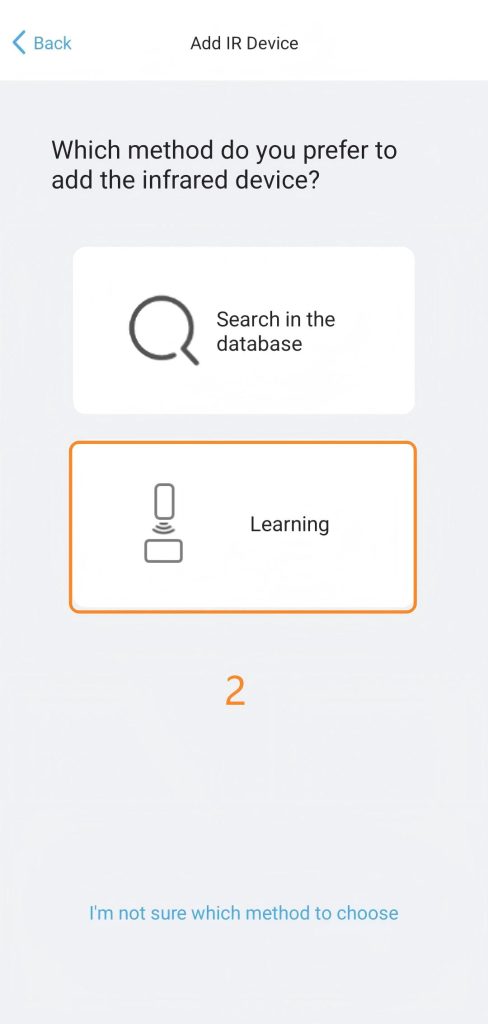
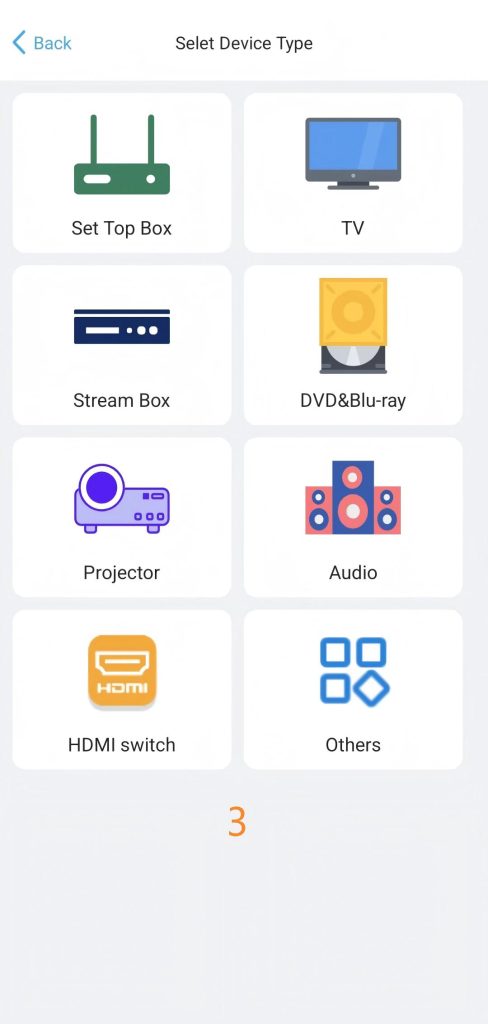
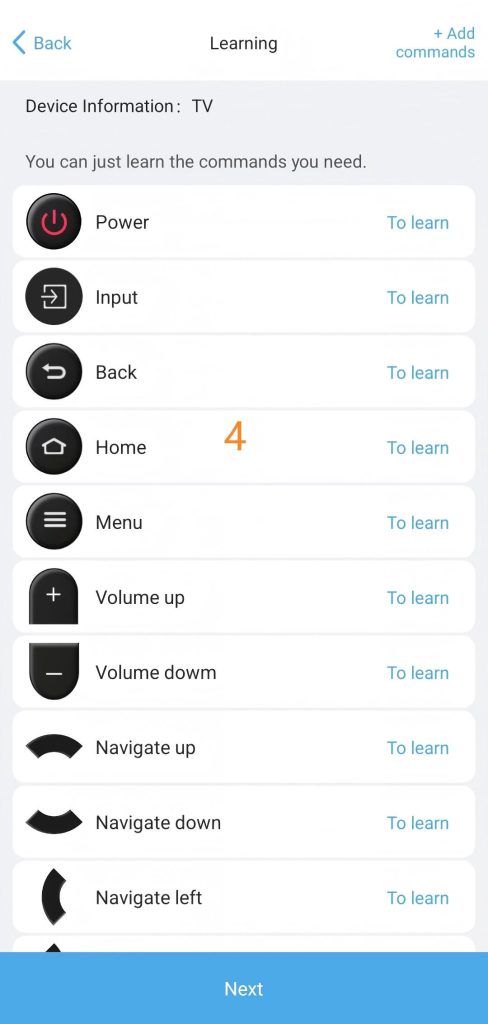
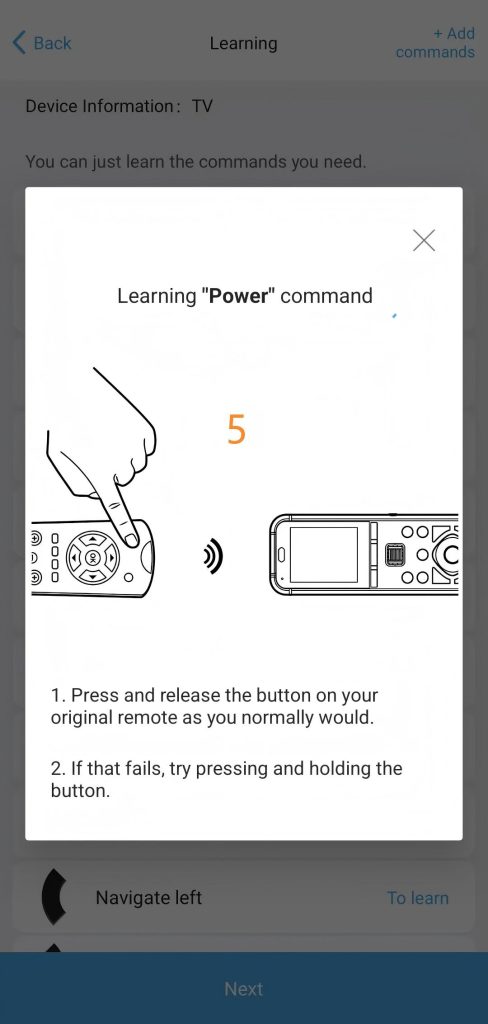
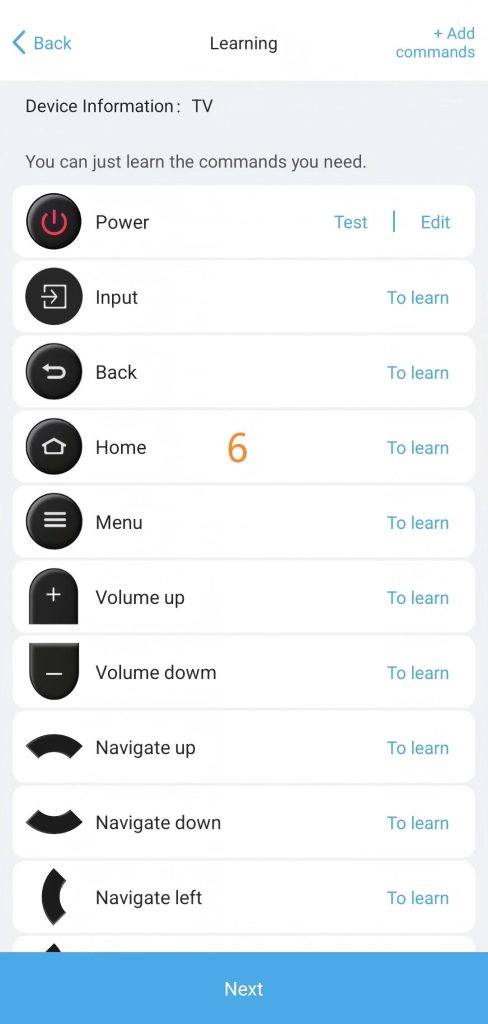
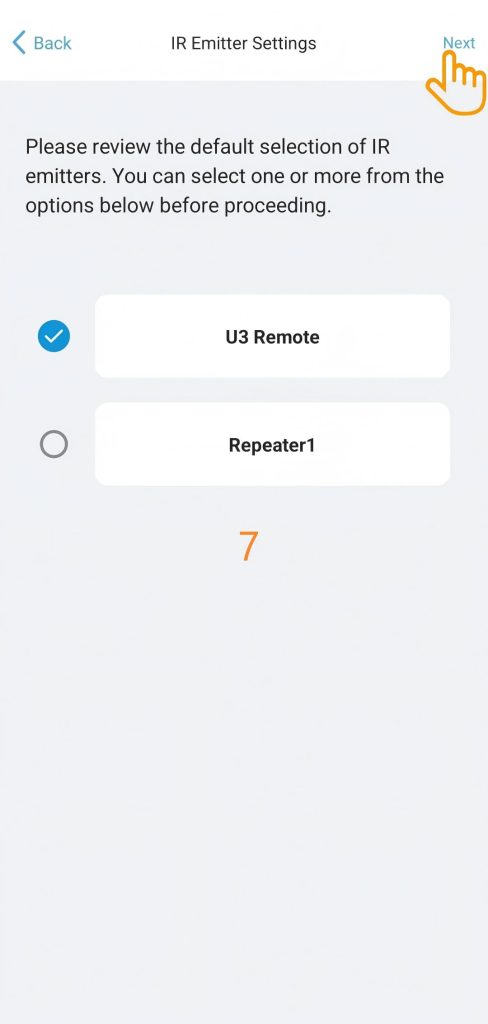
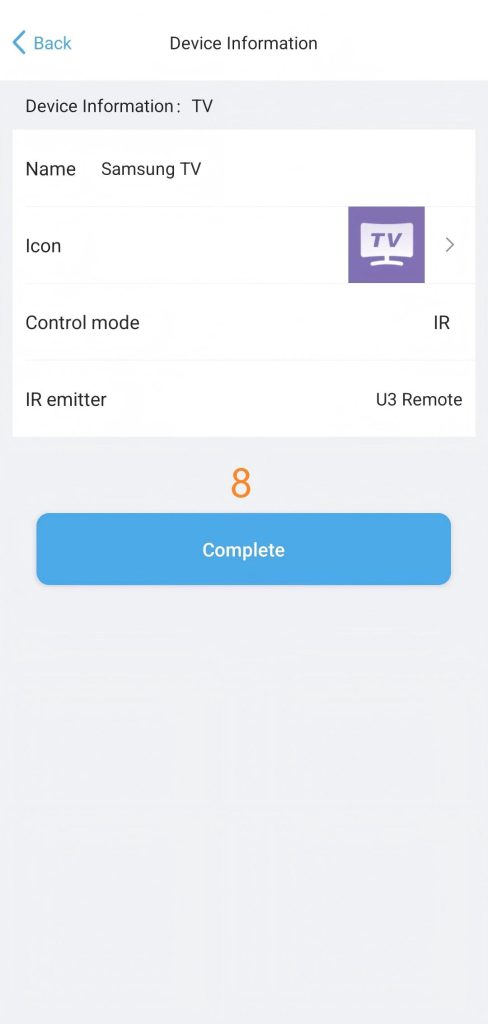
If you’re having trouble with command learning, go back to the previous menu and try entering the learning mode again.
If the command seems to have been learned successfully but isn’t working when you test it, give learning another shot. Remember, there’s no need to hold the button down—Just a quick press and release, as you would normally do, ought to do the trick.
2. Add a Bluetooth device
Let’s take a look at how to add a Bluetooth-controlled device using Apple TV as an example. Since AppleTV is a Bluetooth-controlled device, you will need to navigate to the Apple TV settings to complete the pairing process. To accomplish the task, follow these steps:
Stage 1: Please choose your device and proceed with downloading the code. The process may take approximately twenty seconds.
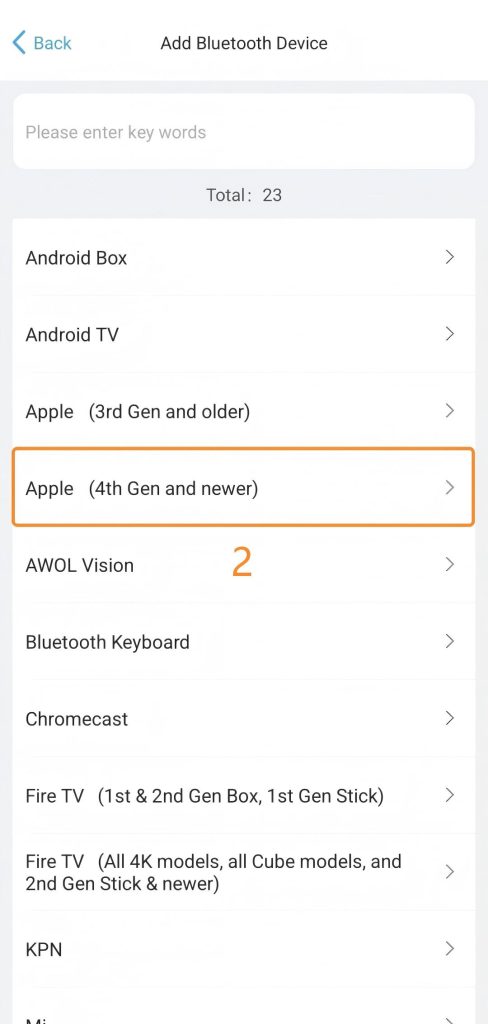
If your brand is not listed, you can select a generic profile like Bluetooth Keyboard, Android Box, or Other. Once paired, the U3 acts as a standard input device to control it.
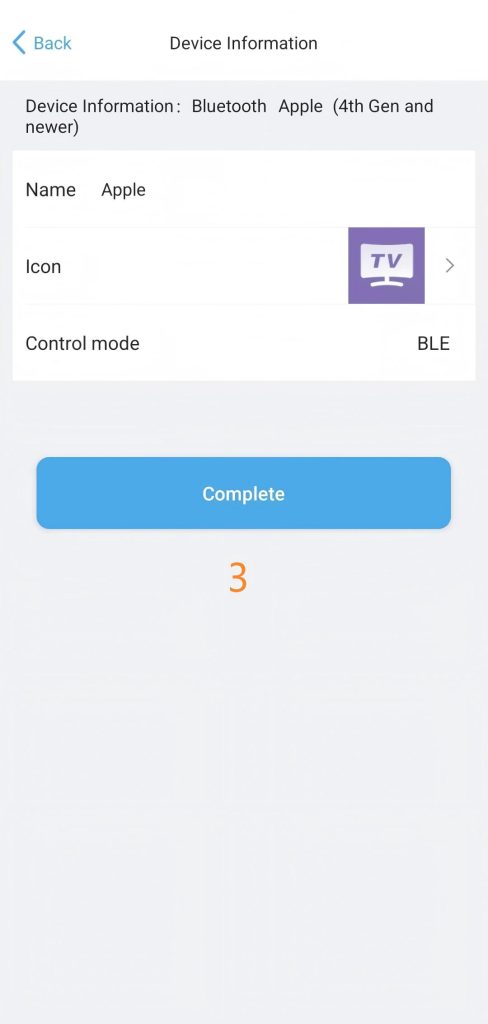
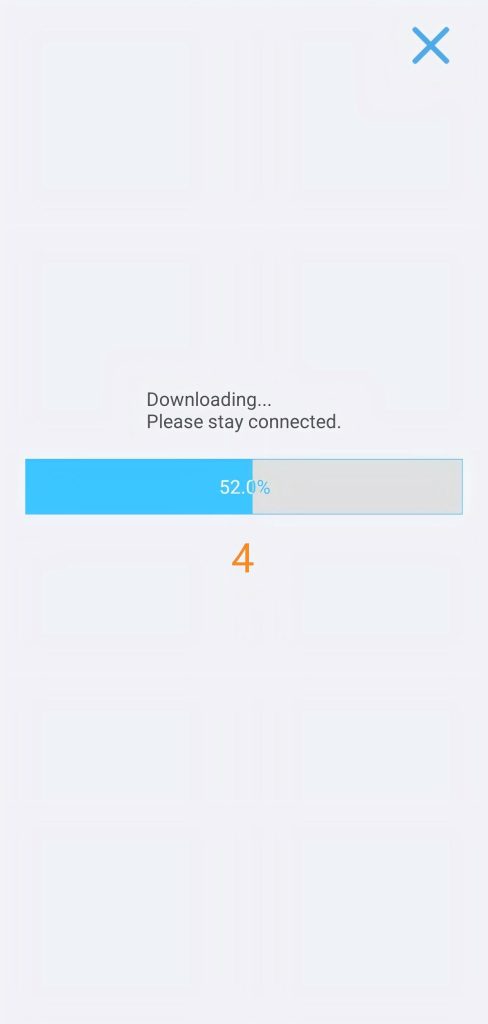
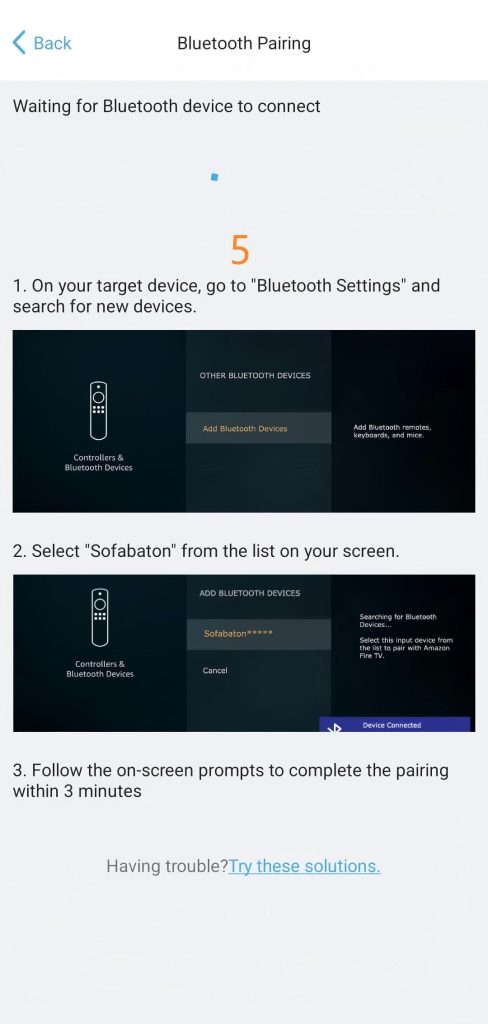
Stage 2: Go to the settings of your Apple TV, navigate to ‘Bluetooth’, and select the device starting with ‘Sofabaton’ to pair.
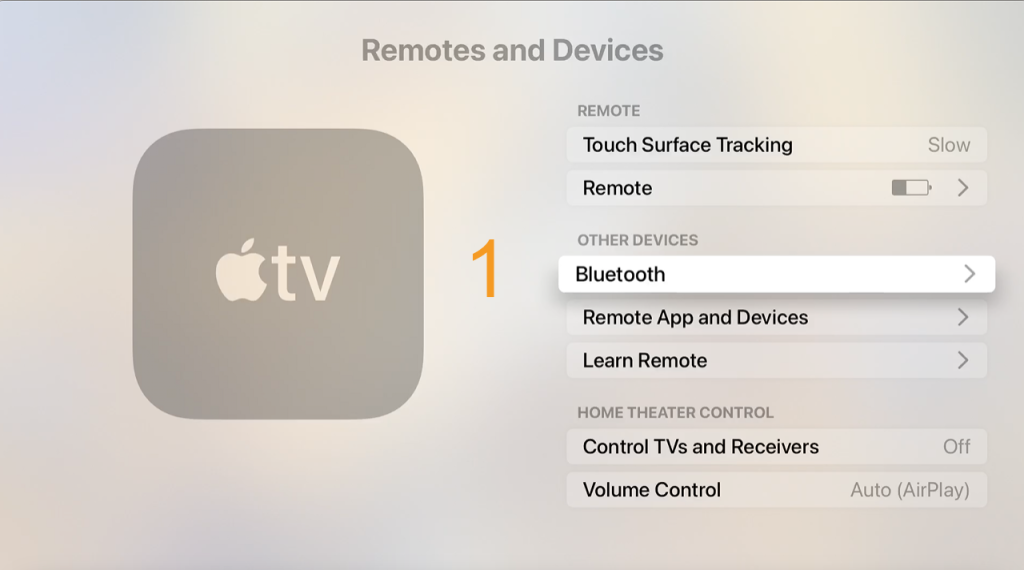
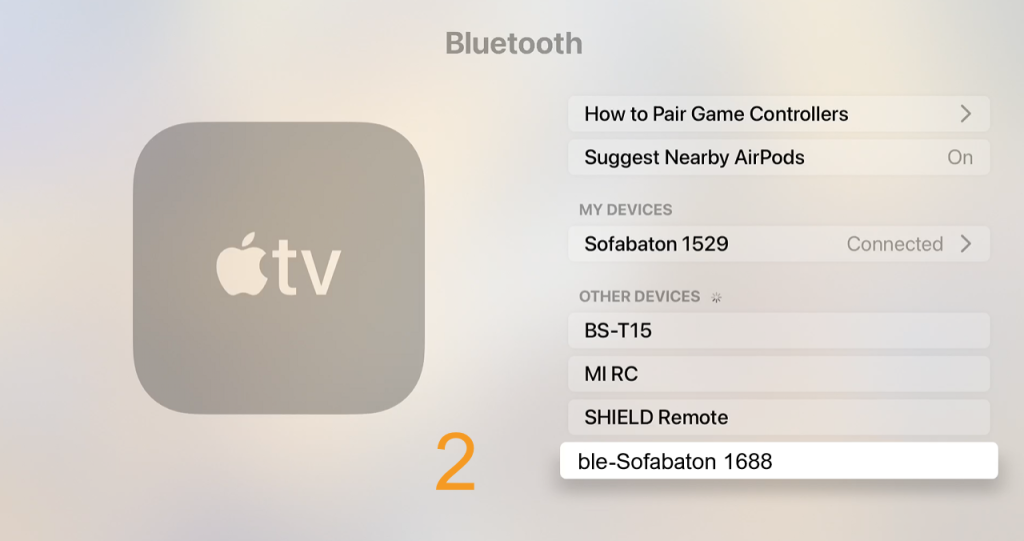
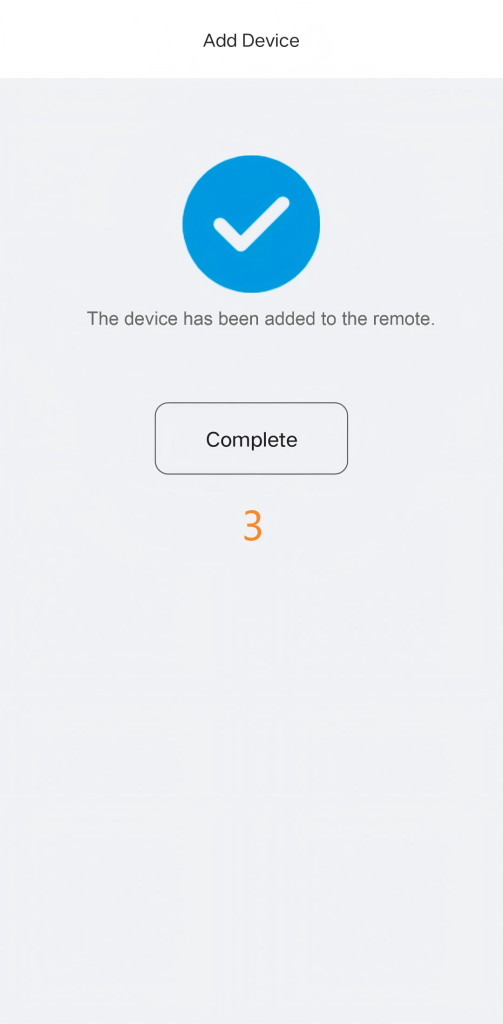
The application will display a notification indicating that the device has been added successfully.
 Bluetooth Pairing & Troubleshooting
1) Troubleshooting Pairing Failure:
If your device cannot find “SofaBaton” during scanning, please restart the device you are pairing. Then, go back to the previous page in the App and re-enter to prompt the U3 remote to broadcast the pairing signal again.
2) Choosing Bluetooth Modes (BLE vs. BT):
The U3 supports two Bluetooth modes: BLE (Recommended) and BT.
- BLE (Bluetooth Low Energy): Strongly Recommended. The U3 supports up to three BLE devices running simultaneously (always online), ensuring instant, seamless control without the switching delays or errors associated with standard BT.
- BT (Standard Bluetooth): If connecting to “BLE-Sofabaton” fails, try the standard BT mode instead. Caution: The U3 can only connect to one BT device at a time, and switching between them may cause a slight delay.
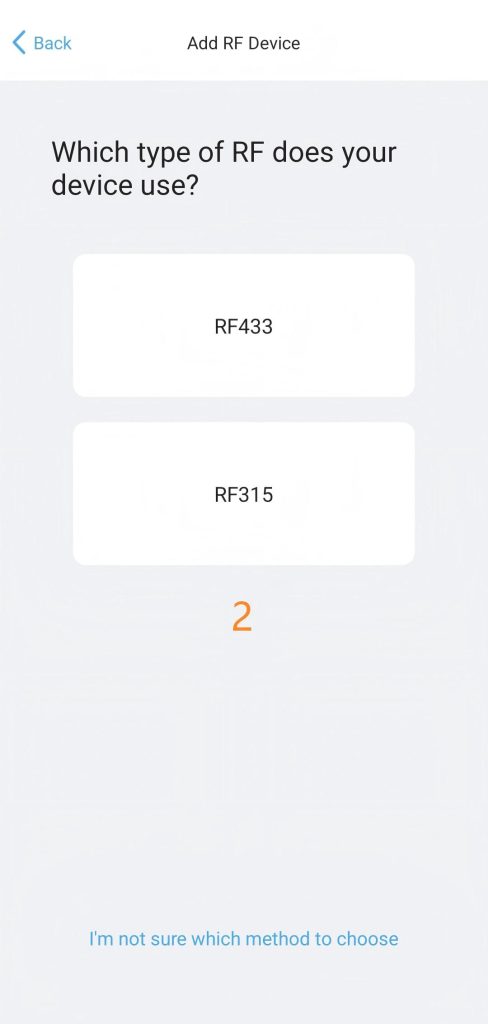
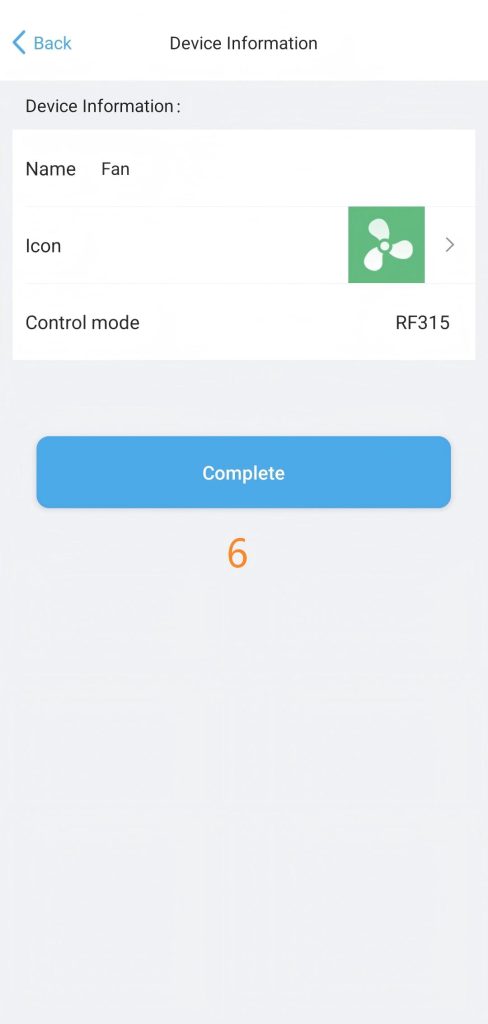
3. Add a RF device
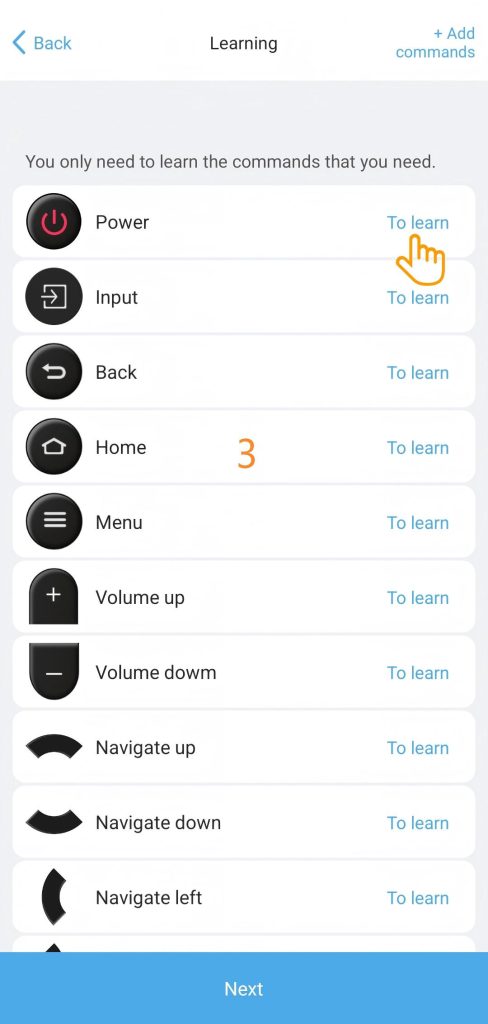
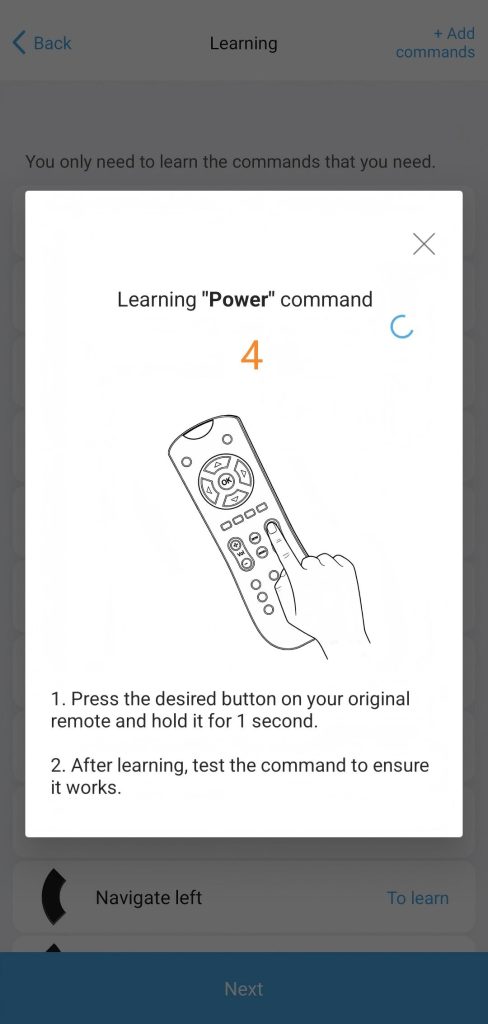
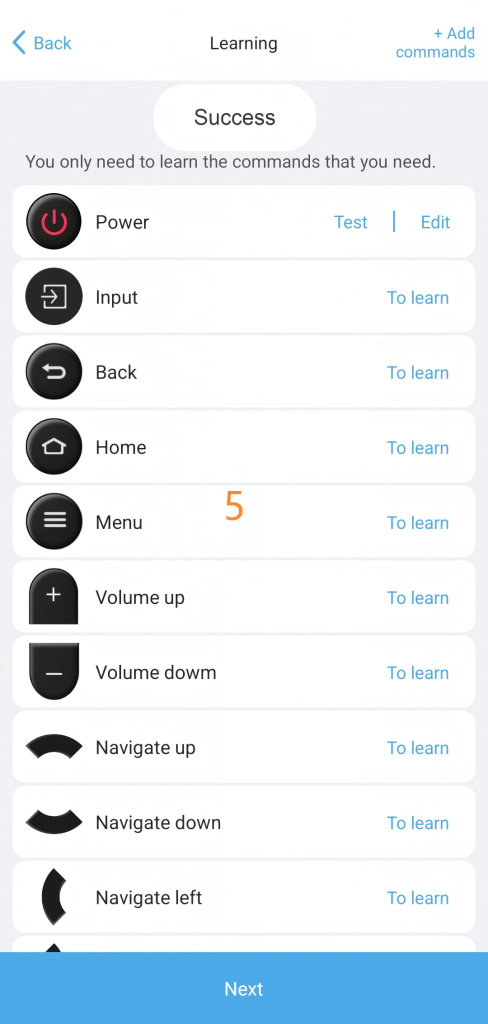
Learn the signal directly from the original remote to add your RF433/RF315 device.
Important Tips:
- Minimize Interference: Avoid learning near strong electromagnetic sources (like powerful electrical appliances or wireless routers) to ensure clean RF signal capture.
- Verify Reliability: After learning, press the new button multiple times immediately to confirm the receiving device can stably accept the command.
- Troubleshoot Learning Issues: If learning fails, re-enter learning mode and ensure you press and hold the button on the original remote for a longer duration to capture the complete signal. Note: Advanced devices using rolling codes may not be compatible with standard signal learning.