





Quick answer: Cover the front of the remote and test Power, volume, navigation, and Home. If all four buttons stop, those commands likely use infrared (IR). If some buttons still work, check the device for a remote-pairing menu. The remote may also use Bluetooth. A phone camera can reveal many IR signals. If neither pattern fits, check the model label and radio-frequency markings. Then disconnect the network briefly and test again.
No single test identifies every remote. One remote can use IR for power, Bluetooth for navigation, and the network for apps or automations. Run several checks below. Then confirm the exact device and remote model before you buy a replacement.
5 Quick Tests to Tell If a Remote Is IR or Bluetooth
Test 1: Cover the front and try several buttons
Cover the remote’s front edge with your hand or an opaque card. Test Power, volume, navigation, and Home one at a time. IR needs a clear path from the remote to the device. If a button stops working when the front is covered, it likely uses IR.
Do not judge the whole remote from one button. Power or volume may stop while navigation keeps working. In that case, the remote may use more than one control method. For example, a Smart TV remote may use IR for power and a paired wireless link for other commands.
Test 2: Use a phone camera to look for infrared output
Open the camera app. Point the remote’s front emitter at the lens and press Power. Look for a white, purple, or flashing light on the screen. That light usually means the button sends IR. Test a few other buttons because a hybrid remote may use different signals.
No visible flash does not prove that the remote lacks IR. Some phone cameras filter infrared light. A weak battery can also reduce the signal. Try the front camera first. If needed, use another phone or digital camera.
Test 3: Check the device’s remote-pairing menu
Bluetooth remotes usually need pairing. On the TV, streaming player, or media box, open Bluetooth, Accessories, Remotes, or Controllers. Look for a remote name, connection status, or pairing command. Any of these is strong evidence that the device uses Bluetooth for some commands.
Pairing menus and button combinations vary by model. If you are considering SofaBaton, read how to check Bluetooth device compatibility. Then verify the exact model. Devices in the same product family may work differently.
Test 4: Check the model, certification, and frequency labels
Check the remote’s back, battery compartment, manual, and regulatory label. A Bluetooth logo or pairing instructions suggest Bluetooth control. A label such as 315 MHz, 433 MHz, or another radio frequency may point to proprietary RF instead.
A frequency label is only a clue. Two products can use the same frequency and still be incompatible. Their encoding, pairing process, rolling code, or regional firmware may differ. Record the full remote part number and device model.
Test 5: Disconnect the network and compare what still works
Disconnect the TV, hub, or media device from Wi-Fi for a moment. Do not change other settings. Test the same commands again. If basic control still works, those commands probably do not need Wi-Fi. If discovery, status updates, app control, or automations stop, those features may use Wi-Fi or Local IP.
This test cannot identify every protocol. Bluetooth, IR, and proprietary RF can keep working during a network outage. Some network devices also keep basic local control. Reconnect the network after the test. Then compare the result with the model documentation.
IR vs Bluetooth Remote: The Key Differences
IR remotes need a signal path but usually no pairing
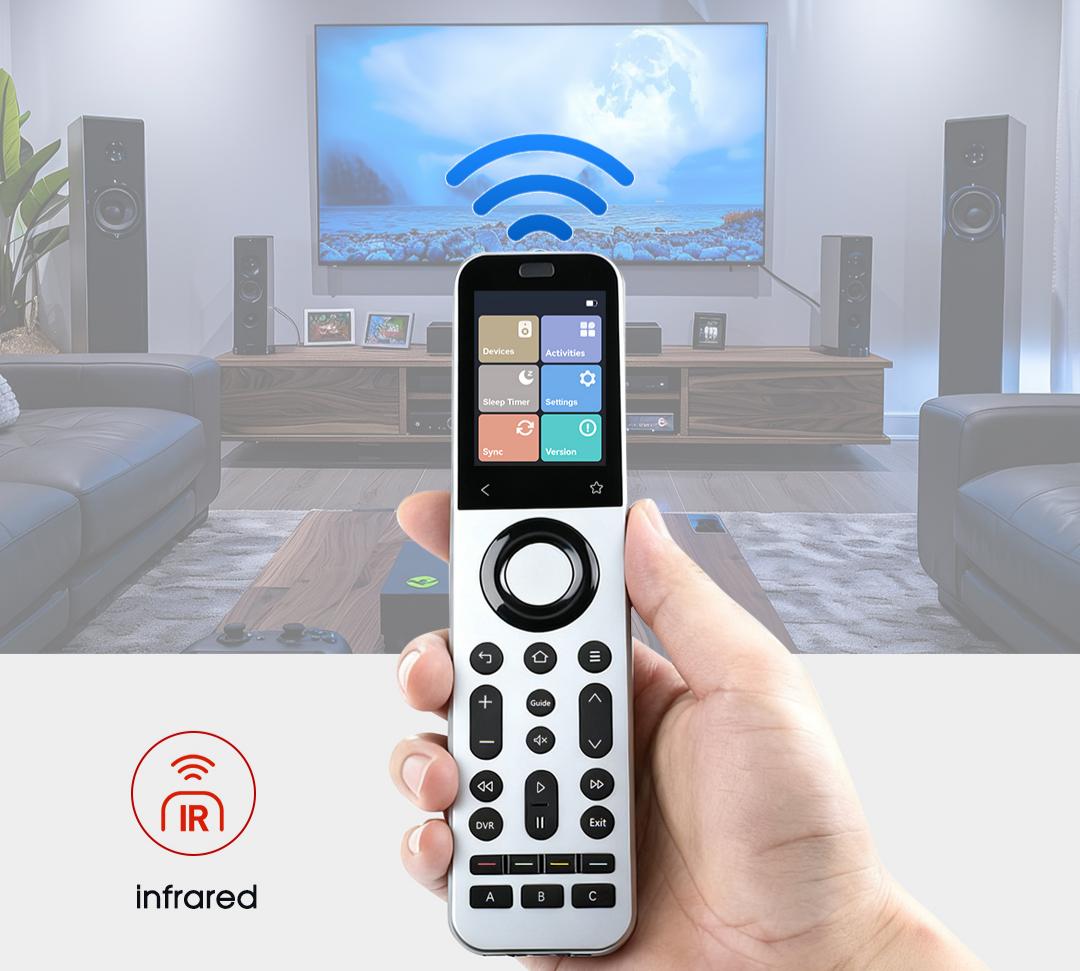
An IR remote sends coded pulses of invisible light. It usually works without pairing or a home network. You still need to aim the emitter at the device’s IR receiver. Many TVs, soundbars, AV receivers, and air conditioners support IR. Available commands still depend on the exact brand, model, and region.
Bluetooth remotes need pairing but not precise aim
A Bluetooth remote creates a wireless link after pairing. It can support navigation and voice without being aimed at the screen. Its range depends on the radio design, distance, walls, and interference. The installation also matters. See the Bluetooth SIG’s range overview for why one distance cannot apply to every product.
What If It Is Neither IR nor Bluetooth?
Proprietary RF
Some blinds, ceiling fans, projectors, gates, and home-control products use proprietary RF. Their remotes may show a radio frequency or need a brand-specific pairing process. Matching the frequency is not enough. The code format, pairing method, rolling code, and brand support must also match.
Wi-Fi or Local IP
Wi-Fi or Local IP can link a device to a phone app, hub, or automation platform on the same network. These methods may support discovery, status updates, and routines. Exact integrations vary. Read SofaBaton’s current compatibility guidance. Before purchase, confirm the exact model in the SofaBaton app or the relevant product checker.
IR, Bluetooth, RF, and Wi-Fi at a Glance
| Control method | Quick clues | Main strengths | Check before buying |
|---|---|---|---|
| IR | Blocked by an obstacle; often visible through a phone camera | No pairing or network; widely used for AV equipment | Exact model, required buttons, receiver location |
| Bluetooth | Pairing record or Bluetooth menu; works without precise aim | Navigation, voice, and short-range wireless control | Pairing process and exact model support |
| Proprietary RF | Frequency or vendor-specific radio label | Can work through some obstacles | Frequency, code format, pairing, and rolling code |
| Wi-Fi / Local IP | Network, app, hub, or device-discovery dependency | Status feedback, discovery, and automations | Account, platform, integration, and model support |
Why One Remote Can Use More Than One Signal
A remote’s label may not describe every command it sends. A maker may use separate control paths for power, navigation, voice, or an accessory. Check which command fails. Then identify the device that should receive it.
- A Smart TV remote may use IR for Power and Bluetooth for navigation or voice.
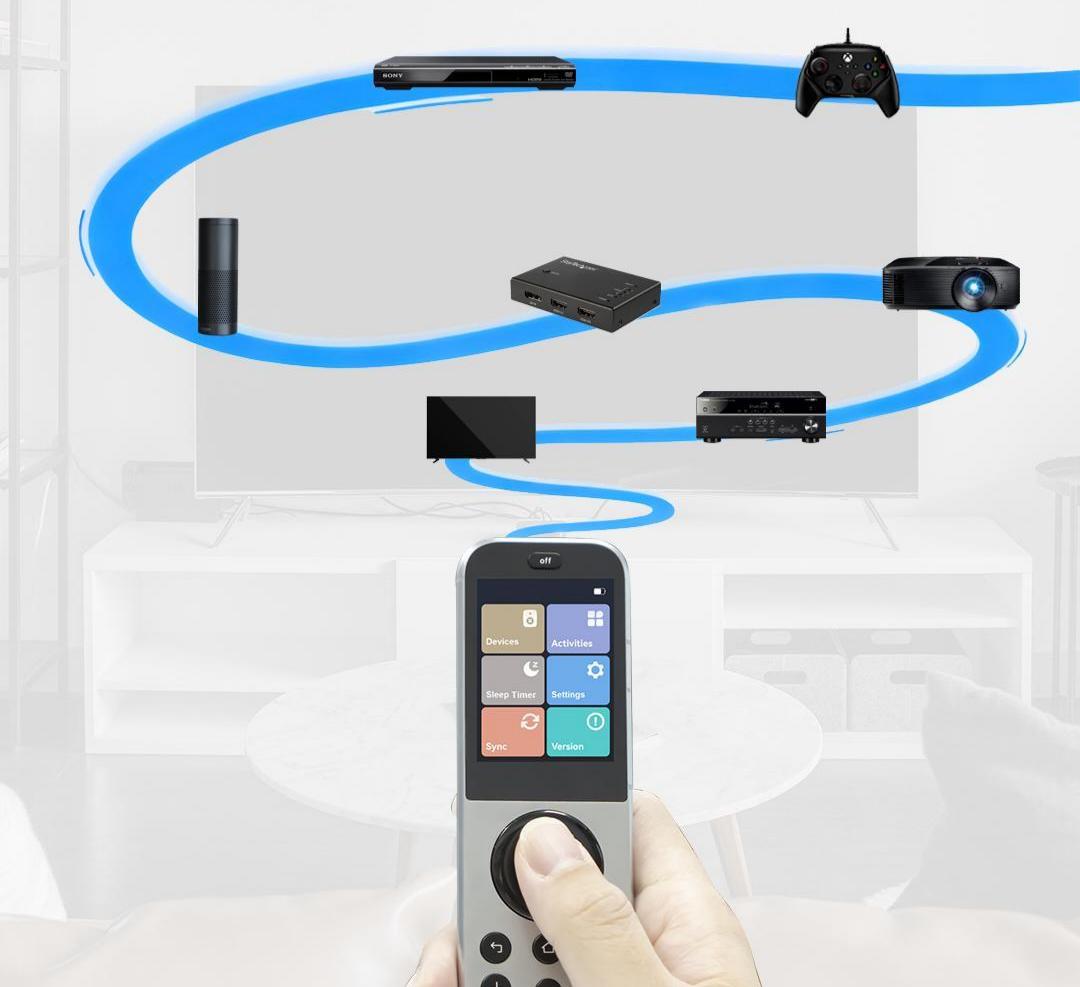
- A home theater activity may use IR for the TV and soundbar while a hub controls equipment inside a cabinet.
- One activity can combine IR, Bluetooth, proprietary RF, and Local IP. A failed path may affect only one device or a few buttons.
If the TV responds but the audio system does not, the soundbar may use a separate control path. Read why a replacement remote works on the TV but not the soundbar. The guide shows how to check the soundbar as its own device.
Can IR Learning Copy Bluetooth, RF, or Wi-Fi Commands?
Usually not. IR learning records the infrared pattern from an original remote. It cannot copy Bluetooth pairing, proprietary RF coding, or Wi-Fi and Local IP links. It works only when the original command uses IR and the new remote can learn that signal.
Before you replace a remote, write down every device model. Also list the commands you need: power, volume, input, navigation, voice, app shortcuts, and cabinet control. This helps you avoid a remote that powers the TV but misses other key functions.
Choose a Compatible SofaBaton Remote
Start with the control methods and installation, not the product name. List every device and exact model. Mark the buttons you need. Also note any equipment inside a cabinet or included in an activity.
| Setup | Option to evaluate | Confirm before choosing |
|---|---|---|
| A few IR or supported Bluetooth devices with handheld control | U3 | Exact models, essential commands, line of sight, and Bluetooth requirements |
| Multi-device activities or equipment that benefits from a hub | X1S | Activity logic, IR emitter placement, and each device’s Bluetooth or network support |
| A more complex setup involving supported RF, Local IP, or smart-home control | X2 | RF encoding, network integration, firmware, and current official support |
Check compatibility first: Read SofaBaton’s compatibility guidance. Then confirm each exact model and required function in the SofaBaton app or product checker. Once you know the control path, compare U3, X1S, and X2.
Frequently Asked Questions
How can I tell whether my remote is IR or Bluetooth?
Cover the front and test several buttons. Then use a phone camera to look for IR light. Check the device settings for a remote-pairing record. If some buttons still work when covered, the remote may combine IR and Bluetooth. Confirm the result with the model label and manual.
Can one remote use both IR and Bluetooth?
Yes. Some remotes send Power or volume by IR. They use Bluetooth for navigation, voice, or smart features. If only a few buttons fail, test IR and the paired link separately. Do not assume the whole remote uses one signal.
Does a TV remote need Wi-Fi to work?
Not always. Many remotes control the TV through IR or Bluetooth without the home Wi-Fi network. Phone apps, device discovery, status synchronization, and automation features may require a network. A brief disconnect-and-retest comparison can show which functions depend on Wi-Fi.
Can an IR universal remote control a Bluetooth-only device?
Usually not. An IR remote sends infrared codes. A Bluetooth-only device needs compatible pairing and protocol support. Before purchase, check the exact model and required commands. The brand or device category alone does not prove compatibility.
What type of remote can control equipment inside a cabinet?
Bluetooth, supported RF, Wi-Fi, Local IP, or a hub with IR emitters may control hidden equipment. The right choice depends on the device protocol and current support. Cabinet materials and emitter placement also matter. A signal passing through the door does not prove compatibility.
Identify the Signal Before You Replace the Remote
To tell if a remote is IR or Bluetooth, start with the obstacle and camera tests. Then check pairing records. If neither method fits, inspect frequency labels and network use. These clues may point to proprietary RF, Wi-Fi, or Local IP. Identify the path used by each key command.
Before you choose a replacement, read SofaBaton’s compatibility guidance. Verify every exact model and required function. Then compare U3, X1S, and X2 and choose the setup that fits your devices.