





Do your devices stop responding when you close the cabinet door? An IR blaster inside the cabinet can help if the door blocks the infrared signal. The SofaBaton Infrared Repeater serves this role and works only with the X2 and U3. It sends IR commands from a spot near your devices.
Pair the Infrared Repeater and select it as the device’s IR output. Then place it where its signal can reach the device’s IR receiver. With this setup, it can help control compatible devices beyond your existing IR coverage.
For example, a closed cabinet door may block the signal to a set-top box. Place the Infrared Repeater inside the cabinet where its signal can reach the box’s IR receiver. The Infrared Repeater can then send commands near the box, so you do not need to open the door.
How Does an IR Blaster Help with Cabinet Devices?
Why Can a Cabinet Door Interfere with Infrared Control?
Infrared, or IR, is one way a remote sends commands. Think of it as invisible light. When you press Power or Volume, the remote emits an IR command. The device’s IR receiver detects that command.
An opaque cabinet door can block the signal. So can an internal divider or an object in front of the receiver. A device may work on an open shelf but stop responding inside a cabinet.
A device may also fail to respond because it uses another control method or has the wrong settings. Not sure whether your device uses infrared? Read SofaBaton’s guide to identifying IR and Bluetooth remotes.
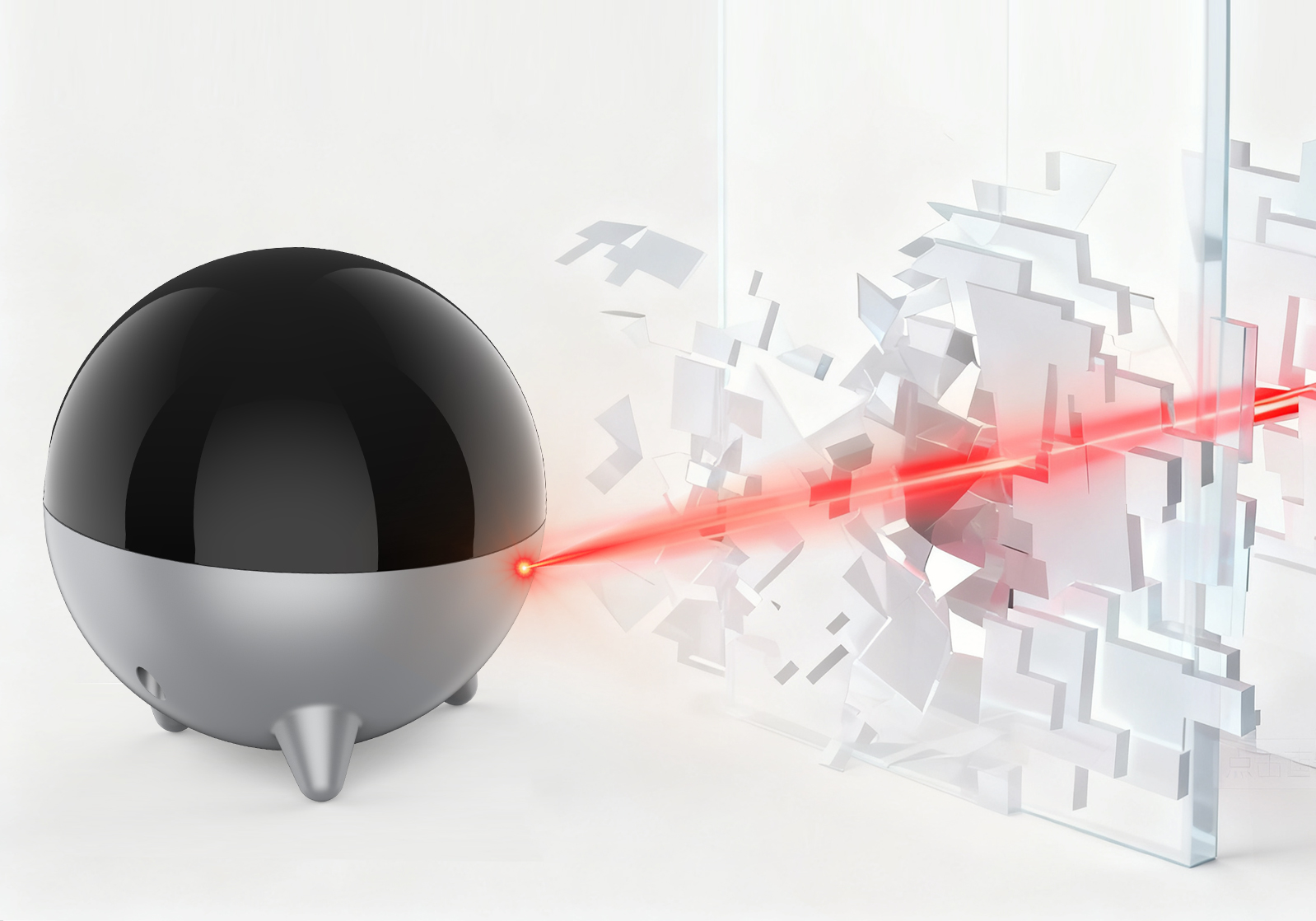
Add an IR Emitter Near Your Devices
An IR blaster sends infrared commands to a device’s IR receiver. The Infrared Repeater performs this function as part of your X2 or U3 setup. Place it near your devices to give the signals a clear path. It does not make infrared signals pass through an opaque cabinet door.
Here is a simple overview of how it works:
- Press a button on your X2 or U3.
- The paired system sends the command to the Infrared Repeater.
- The Infrared Repeater emits an infrared signal.
- The compatible device responds.
Place the Infrared Repeater where its signal can reach the device’s IR receiver. For example, your set-top box may sit in the cabinet’s left compartment. Place the Infrared Repeater in or near that compartment. Do not put it at the other end of the cabinet if a divider blocks the signal.
When Should You Consider an Infrared Repeater for Your X2 or U3?
Your Devices Respond with the Cabinet Door Open, but Not Closed
This may point to a blocked IR signal. Press the same remote button with the cabinet door open. Then close the door and try again. If the device stops responding, check the signal path.
The Infrared Repeater adds an IR emitting point inside the cabinet. It can help control compatible set-top boxes, media players, and audio equipment. If your cabinet has separate compartments, test each device on its own.
Your X2 Hub or Wired IR Blaster Cannot Easily Reach a Device
If you use an X2, first move the Hub or try a wired IR blaster. Add an Infrared Repeater if the cable cannot reach the device or the existing emitters do not cover it.
For example, most of your AV equipment may sit below the TV. Another device may be in a separate cabinet nearby. You can place an additional emitter near that device. See SofaBaton’s X2 Hub placement guide for more details.
You Frequently Need to Adjust the Angle of Your U3
The U3 normally sends infrared signals from the remote itself. You must aim it toward the device. This can be difficult when the device sits off to one side or inside a cabinet.
The Infrared Repeater sends infrared commands from a fixed location. This removes the need to aim the remote at that device. First, select the Infrared Repeater as the device’s IR output. Then place the Infrared Repeater where its signal can reach the device’s IR receiver. See the U3 Infrared Repeater setup guide for details.
What Should You Check Before Using the Infrared Repeater?
Before purchasing and setting up the Infrared Repeater, check these three things:
- Remote model: Make sure you are using a SofaBaton X2 or U3.
- Target device: Check the exact model and the functions you want to control. Read SofaBaton’s compatibility guidance, then confirm the model and required IR commands in the SofaBaton app or product checker.
- Placement and power: Choose a spot near the device with access to power. Make sure no divider or other object blocks the infrared signal.
The Infrared Repeater improves infrared coverage. It cannot fix an incorrect command setup. It also cannot control a function that uses an unsupported control method.
How Do You Position and Set Up the Infrared Repeater?
Connect Power and Complete Pairing
Connect the Infrared Repeater to power. Then follow the steps for your remote model in the SofaBaton app. Pair and test the Infrared Repeater in an easy-to-reach spot before moving it to its final position.
Select the Infrared Repeater as the Device’s IR Output
After pairing, you still need to select the Infrared Repeater as the IR output for the target device.
For example, open the set-top box’s device settings in the SofaBaton app. Select the Infrared Repeater as its IR output. Commands will still come from the original emitter until you change this setting.
For an X2, follow the X2 IR output settings guide. For a U3, follow the U3 Infrared Repeater output settings guide.
Close the Cabinet Door and Test Each Device’s Everyday Functions
Place the Infrared Repeater where its signal can reach the device’s IR receiver. Keep equipment, dividers, and other objects out of the signal path. Then test the setup as you normally use it:
- Close the cabinet door and sit in your usual viewing position.
- Test Power. Then test the functions you use most, such as navigation, volume, and input selection.
- If several devices use the Infrared Repeater, test each one individually.
If a device responds only sometimes, adjust the Infrared Repeater’s position or direction. Then test it again. Check every function you need, not only the Power command.
Frequently Asked Questions About the Infrared Repeater
Which Remotes Does the Infrared Repeater Support, and Can It Work on Its Own?
The Infrared Repeater pairs only with the SofaBaton X2 and U3. It cannot function as a standalone remote and does not support the X1S, U2, or remotes from other brands.
Can the Infrared Repeater Control Devices with the Cabinet Door Closed?
Yes, it can control compatible IR devices with the door closed. Pair the Infrared Repeater and select it as the device’s IR output. Place it where its signal can reach the device’s IR receiver. Test each compartment separately.
Do I Need an Infrared Repeater if I Already Have an X2 Hub?
You may not need an Infrared Repeater if the Hub or a wired IR blaster already controls every device. Add an Infrared Repeater when a device is out of reach or you cannot run the required cable.
Why Is My Device Not Responding Even Though the Infrared Repeater Is Paired?
Check that the Infrared Repeater has power and remains paired. Make sure you selected it as the device’s IR output. Remove anything that blocks the device’s IR receiver. If the device still does not respond, check its model and command setup. See how to select the Infrared Repeater as the device’s IR output above.
Make Cabinet Storage and Everyday Control More Convenient
Do you use a SofaBaton X2 or U3 with devices inside a cabinet? The Infrared Repeater can add infrared coverage near those devices. Check your device models and cabinet layout first. You can also visit the X2 product page to learn more about the remote and explore your setup options.